If you're working with a message containing static or XSLT template content, when you click Next on the Message Content Details page (or the Message Content page if you've already defined the details of your message content), the system brings you to the Message Links page. You can also get to this page when you click the Links tab when you're working with messages.
The Message Links page will not display any information if you have not yet defined content for your message on the Message Content and Message Content Details pages.
- Review a summarization of the links, merge tags, and images contained in the message content.
- Define links by associating inferred interests to them and assigning them click-through and conversion values.
- Reclassify invalid links, merge tags, and images as being unverifiable (you will not be able to roll out messages with invalid links).
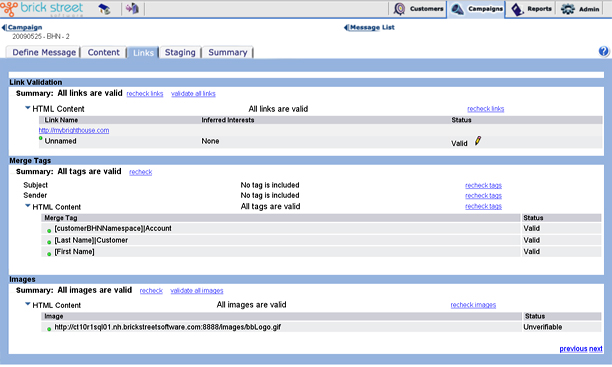
The Message Links page is divided into sections for Link Validation, Merge Tags, and Images. Each of these sections contains a subsection that can be expanded to show a list of links, merge tags, or images associated with the message. Each individual message object will have a red or green dot associated with it. The dot is red if the object is invalid, and green if the object is valid or defined as unverifiable by the user.
The system will not roll out messages with invalid links, merge tags, or images. If you come to this page and find a number of unverifiable message objects, click the blue underlined recheck links, recheck tags, and recheck images links (as appropriate). It is possible for message objects to be validated once you do this.
If you have the system recheck message objects and you still end up with some that are invalid, you can reclassify them as being "unverifiable" by clicking on the blue underlined Invalid link associated with the object. This will enable you to roll out the message despite the fact some of the message objects were invalid.
When you're finished with this page you can click the Next arrow to go on to the Message Staging page.
Reviewing, Reclassifying, and Defining Links
The Link Validation section is composed of summaries of the links in the message. The system separates links into separate collapsible sections by content type. For example, if your message has both text and HTML content, the system will set up two link summaries &endash; one for text and another for HTML.
When you expand a link section you'll see a list of links associated with the message. In the Link Name column, you'll see the name of the link and the actual HTML path of the link. Click the link path to open up a browser window showing you the link destination. You can use this feature to verify that the links go where you want them to.
Under Inferred Interests, you'll see the inferred interests you've associated with the link. You can associate inferred interests with a link by clicking the edit (pencil) icon for the link. The system will take you to the Edit Message Links page, where you can associate inferred interests and define conversion and click through values for any link.
- You can click recheck links to have the system recheck all links at once. In some cases the system will be able to validate links it previously found to be invalid.
- You can edit the message content directly to correct or remove invalid links. For more information about managing the content of your message see the Content Administration section of the Connect documentation set.
- You can reclassify links as being unverifiable. To do this, click on the blue underlined Invalidlink that appears in the Status column for a link. The system will automatically reclassify the link as unverifiable. Usually, unverifiable links occur when the Connect user is behind a firewall that prevents external verification.
You can use this list to identify links that you need to associate inferred interests with or assign click-through and conversion values to. When you find these links, click the edit (pencil) icon associated with the link. The system will bring you to the Edit Message Links page. You can use this page to perform the above actions. You can also edit the link URL and name from the Edit Message Links page.
Reviewing and Reclassifying Merge Tags
The Merge Tags section is composed of summaries of the merge tags in the message. The system separates merge tag summaries into separate collapsible sections by content type. For example, if your message has both text and HTML content, the system will set up two link summaries &endash; one for text and another for HTML.
When you expand a merge tags section you'll see a list of merge tags associated with the message. The Merge Tag column displays each merge tag associated with the message.
- You can click recheck tags to have the system recheck all merge tags at once. In some cases the system will be able to validate merge tags it previously found to be invalid.
- You can edit the message content directly to correct or remove invalid tags. For more information about managing the content of your message see the Content Administration section of the Connect documentation set.
- You can reclassify merge tags as being unverifiable. To do this, click on the blue underlined Invalid link that appears in the Status column for an invalid merge tag. The system will automatically reclassify the tag as unverifiable. Usually, unverifiable tags occur when the Connect user is behind a firewall that prevents external verification.
Reviewing and Reclassifying Images
The Images section is a summary of the images in the message. The system separates image summaries into separate collapsible sections by content type. For example, if your message has both text and HTML content, the system will set up two link summaries &endash; one for text and another for HTML.
When you expand a merge tags section you'll see a list of images associated with the message. In the Image column, you'll see the URL for each image in the message content.
- You can click recheck images to have the system recheck all images at once. In some cases the system will be able to validate images it previously found to be invalid.
- You can edit the message content directly to correct or remove invalid images. For more information about managing the content of your message see the Content Administration section of the Connect documentation set.
- You can reclassify images as being unverifiable. To do this, click on the blue underlined Invalid link that appears in the Status column for an invalid images. The system will automatically reclassify the image as unverifiable. Usually, unverifiable images occur when the Connect user is behind a firewall that prevents external verification.