You'll use the Edit Message Links page to review and define information related to individual links in your message content. You'll define the link URL and name, associate inferred interests with the link, and give the link a click through and conversion value as appropriate.
You get to the Edit Message Links page when you click the edit (pencil) icon on the Message Links and Message Manual Links pages. The system will also bring you to this page when you click Create a New Link on the Message Manual Links page.
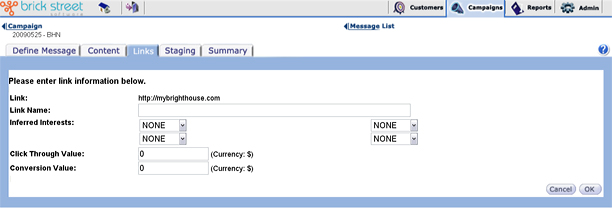
In Link, you can enter or update the link's URL. Enter the link name in the Link Name field.
Use the Inferred Interests drop down list boxes to associate the inferred interests with the link. When the message is rolled out to a customer, and the customer clicks through the link, the system can associate the inferred interests for that link to the customer. That association will come into play later when you're designing filters and dynamic/XSLT message parameters that involve those inferred interests. The system will also use the information it gathers on inferred interests for reports on the relative success of messages and links.
Use Click Through Value and Conversion Value to place a dollar value on click throughs and conversions (purchases) related to the link. As with inferred interests, the system will use these values for statistics related to filters and parameters for messages with dynamic or XSLT content, as well as reporting on the relative success of messages and links.
For more information on creating filters that use inferred interests, see Choosing a Filter Type. For more information on defining parameters for messages with dynamic or XSLT content, see Entering Parameter Information for a Message. For more information on reports see Understanding Reports.
Click the Cancel button to return to the previous window without saving your changes.
Click the OK button to save changes and return to the previous window.