When you click Associate New Message Content or Next on the Message Content page, the system brings you to the Message Content Details page. Here, you can review, enter, or update details of a specific piece of message content.
On the Message Content Details page, you'll identify the files that contain the content of your page, define the type of message content, and indicate whether or not you want the system to archive the message content.
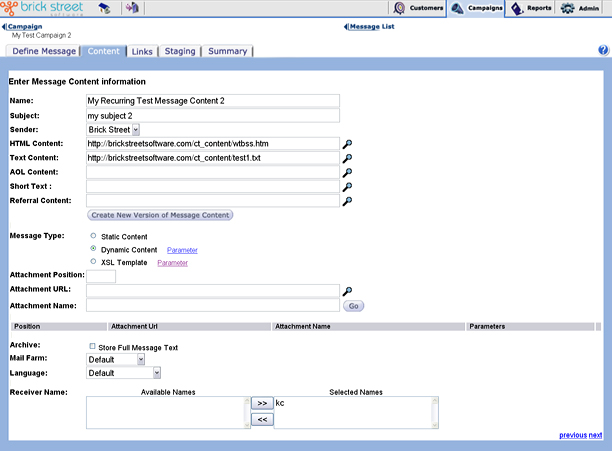
Give the message content item a short, memorable Name. You will use this name to reference the message content during staging and rollout, and for follow up messages.
In the Subject field, you'll enter the message title that customers will see in their inboxes before they open the e-mail. According to marketing studies, a good, cleverly written subject is one of the top three factors that determine whether or not a customer will read e-mail messages sent to them.
In the Sender field, enter the name that should appear on the "From" line of the message. You can define Sender names in the Sender Names section of Administrative Tools.
In HTML Content, Text Content, andAOL content, you can enter the URL for your HTML, text, and AOL message content, respectively. Once you've entered a URL in one of these fields you can review the message content directly by clicking the detail (magnifying glass) icon to the right of the field. The system will bring up the message content in a new browser window. Close the browser window to return to the application.
HTML Compatibility of AOL
AOL 5.x and above supports HTML that enables you to send HTML content for AOL customers which in turn helps to track whether email gets read, using Connect read detectors.
- From the Connect User interface, click Admin and select System Configuration. In the System Configuration window, select the Category Level as Database and Access Level as Advanced.
- The system parameter "Send HTML to AOL customers" enables you to send HTML content to AOL customers. By default it is set to false. In order to send HTML content to AOL customers, the system parameter should be set to true.
- The system parameter "Add read detectors to HTML messages sent to AOL customers" enables users to track HTML email messages read by AOL customers. By default it is set to false. By setting this parameter to true, invisible read detectors are added to the HTML message.
If you want to send a message in a format other than text, HTML, or AOL, clickCreate a New Version of Message Content. The system will bring you to the New Message Content Version page.
Message Type enables you to identify what type of message content you're associating with the message. You must choose betweenStatic Content, Dynamic Content, and XSL Template content. If you choose either Dynamic Content or XSL Template, click the applicable Parameter link to access the Message Parameter Information page, where you'll further define the message content type.
Select the Archive check box if you want the system to archive the message text. Message archiving allows you to archive specific messages in a special database table. You can archive any successfully sent message for retrieval at any time.
You can access the archived messages of a specific customer in the Customer Browser.
How Message Archiving Works
Connect archives messages to a table called MESSAGE_HISTORY_CONTENT. The additional overhead of message archival depends on usage. A simple formula to estimate space required is:
average size of message * number of customers targeted = message archive space
For more information see System Parameters in this guide.
Click Next or the Links tab to go to the Message Links page, where you can review information about the links, merge tags, and images associated with the message content.