When you click the Next arrow on either the Message Links page (for messages with static or XSLT template content) or the Message Manual Links page (for messages with dynamic content), the system will bring you to the Message Staging page. Here you can select the internal groups in your organization that will receive your staged message before you roll it out to customers.
You can also get to this window by clicking the Staging tab.
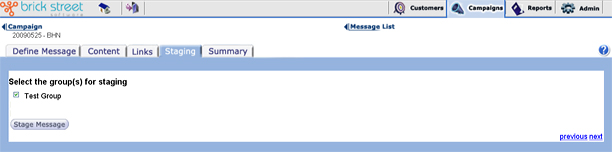
Under Select the group(s) for staging you can select more than one group. You can define the set of staging groups that comes up on this page in the Admin part of Connect™. See the User Groups topic in the Admin section of the Connect documentations set for more information.
Click Stage Message when you're ready to stage a message. Remember, the system will only allow you to stage messages with valid content. If your message has valid content and you click Stage Message, the system will return a statement telling you that it has submitted the message to the staging groups you defined.
If you click Stage Message and the system tells you that your message has invalid content, go back to the Message Links (or Message Manual Links) page to identify the invalid message objects that are holding you up and find a way to either validate them or remove them.
Click the Next arrow to go on to the Message Summary page.