If you're working with a message containing dynamic content, when you click Next on the Message Content Details page (or the Message Content page if you've already defined the details of your message content), the system brings you to the Message Manual Links page. You can also get to this page when you click the Links tab when you're working with a message containing dynamic content.
The Message Manual Links page will not display any information if you have not yet defined content for your message on the Message Content and Message Content Details pages.
- Review a summarization of the links associated with the dynamic message content.
- Define the links that may be associated with your message. For each link, you'll enter the URL, identify inferred interests, and define associated click-through and conversion values.
- Reclassify invalid links, merge tags, and images as being unverifiable (you will not be able to roll out messages with invalid links).
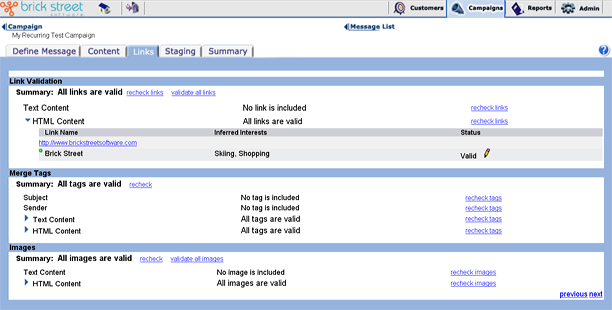
The Message Manual Links page enables you to define all of the links that may go into your dynamic message. The system will list the links you define on this page. For each link you'll be able to review the Link Name, the Inferred Interests associated with the link, the link's defined Click Value, and the link's Status. You can also click the URL to verify that the link goes to the correct place (the system will open the link in a separate browser window).
To add a link to this list, click Create a New Link. The system will take you to the Edit Message Links page. On that page you can name a link, list its URL, enter any inferred interests you want associated with the link, and enter the link's conversion and click values.
If you decide you need to update information on a link you've already added, click the edit (pencil) icon. The system will take you to the Edit Message Links page, where you can change link information as appropriate.
When you're finished using this page, click the Next arrow to go on to the Message Staging page.