When you click the Create a new Message button on the Campaign Summary page, the system brings you to the Define Message page. Here you can define a message by giving it a name, specifying the message type, and identifying the audience segment associated with the message.
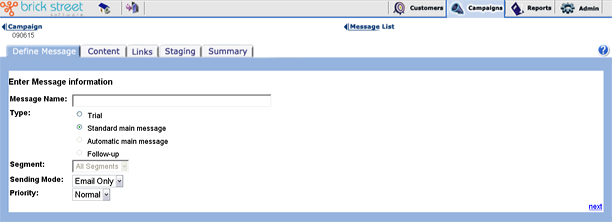
Give the current message a short, memorable Message Name. You will use this name to reference the message content during staging and roll out.
- Trial - Select this option if you want to test your campaign message on a small, randomly selected subset of customers before you send it out to a larger group. The system will select this subset of customers from the segment you associate with the message on this page. (If you select All Segments, the system will randomly select the customer subset from all customers in your segmentation model - or to all customers in your audience model if you've not defined a segmentation model for the campaign.)
For more information on trial messages see Using Trial Messages. For more information on setting up the amount of customers the system selects for a trial message, see the Trial Message Details page.
- Main - Select this option if the message is the main message of the campaign. The system will send this message to the Segment you associate with the message on this page. (If you select All Segments, the system will randomly select the customer subset from all customers in your segmentation model &endash; or to all customers in your audience model if you've not defined a segmentation model for the campaign.)
Customers who have already received a trial message from this campaign will not receive the main message.
- Automatic main messages are the primary main messages for a campaign. You need to create a trial message or a set of trial messages before creating an Automatic main message. The subject and the content is picked up automatically from the Winner Trial messages. Automatic main messages can be configured as shown below.
- The subject and the content can be selected from a single trial message.
- The subject can be selected from one trial message and the content from another trial message.
- The main message can be scheduled to launch at a specified date and time or when one of the trial messages crosses a particular threshold (for instance, when the number of messages clicked is greater than 10,000). For more information, refer to the "Automatic Main Messages" in the documentation set.
- Follow Up - Select this option if the message is a follow up message to a main or trial message. This option will be unavailable if you have not already defined a main or trial message for this segment.
From the drop-down list, select the audience Segment that the message will be associated with. If you wish, you can associate your message with All Segments. See the previous definitions of the Trial and Main message types, above, for more information on what this means.
Defining Message Details for Recurring Campaigns
If you are defining a message for a recurring campaign, you'll have more information to fill in on the Define Message page. You'll have the option of giving the message an expiration date, and you may need to indicate some polling information for the message.
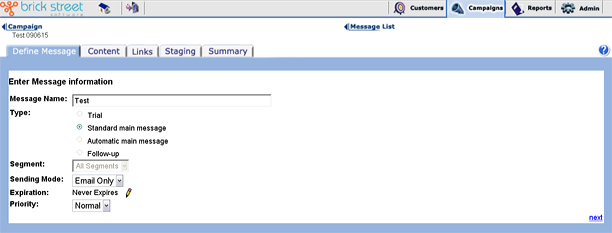
Each message in a recurring campaign can have its own expiration date, or you can tell the system that it "never expires." If you make the latter choice, remember that expiration schedules for messages are bound within the expiration schedule of the overall campaign.
Click the edit (pencil) button next to Expiration to enter or update the expiration date for a message in a recurring campaign. The system will bring you to the Message Expiration page, where you'll define a precise expiration date as appropriate.
The system may also invite you to enter polling interval information on the Define Message page. You'll be given this option when, on the Recurring Campaign Detail page, you tell the system that customers should receive messages from this recurring campaign "based on intervals specified in the message."
If that is the case, then for Polling, you can choose to have the system Send the message to each customer only once or Send the message to each customer [x] day(s) after last message. If you make the latter choice and enter a value (greater than 0 of course), you'll set the polling interval for your message.
Moving On To the Next Page
- If the message type is Trial, the system will bring you to the Trial Message Details page.
- If the message type is Main, the system will bring you to the Message Content page.
- If the message type is Follow Up, the system will bring you to the Follow Up Message Details page.