If you define your message as a follow up message on the Define Message page and click Next, the system will bring you to the Follow Up Message Details page. On this page you can specify what link-related customer actions will generate a follow up message.
A main message can have several different follow up messages associated with it. The multiple follow up messages can be triggered by different combinations of actions and links. For example, you could have a main message with two links, one for a shoe sale and another for a furniture sale. You could set up two follow up messages - one that is sent to customers who click the shoe sale link, and another that goes to customers who click the furniture sale link.
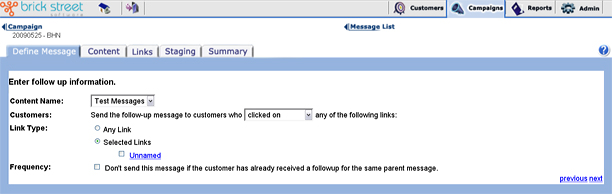
- You'll first use the Content Name drop down list box to specify which main message the follow up message is associated with. That main message will be considered the system's "parent message."
- Then you'll use the Customers drop down list box to select the link-related action that will cause the system to generate this follow up message. For example, you could have the system generate the message when customers click on one of a certain set of links in the parent message. You can have the system generate emails when customers convert on (make a purchase related to) a link or refer on a link.
You can also arrange for a follow up message to go out when customers take the specified action with llinks other than the ones you've specified.
- After that, in Link Type, you need to identify the parent message links that the system will monitor for the specified customer action (such as clicking, referring, or converting on a link). The system displays all links on the parent message. You can select any combination of links, or just select Any Link to indicate actions on all links in the parent message will generate the follow up message.
For instance, in the example shown above, the system will send the follow up message to customers who convert on (make a purchase related to) the http://home.netscape.com link in the parent message. You could also arrange for the system to send the follow up message to customers who do not make a purchase related to that link.
- Finally, you can use the Frequency check box to tell the system whether or not to send this message if the customer has already received other follow up messages for the same parent message.
When you've finished setting up your follow up message details, click Next to go on to the Message Content page.