Each campaign you define can have any number of customer messages associated with it. On the Campaign Summary page, you can review the list of messages associated with a particular campaign and start the process of creating new messages for that campaign.
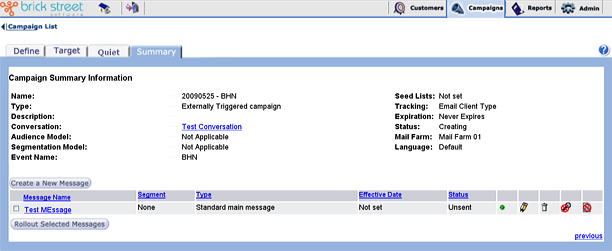
Click Create a new Message to access the Define Message page, where you can define a message and associate it with a current campaign.
For detailed information about the Campaign Summary page, please refer to the Campaigns section of this online help guide. For information about rolling out messages once you've created them, refer to the Rollout section.
All messages associated with the campaign will be listed at the bottom of the Campaign Summary page. You can click the blue underlined column headings for Message Name, Segment, Type, Effective Date, and Status to sort the message list by the selected value.
After you define a message you can review and edit it until it is launched to customers. To do this, return to the Campaign Summary page and click the blue underlined message name in the Message Name column. The system will bring you to the Define Message page, where you can review and update the details of the message as appropriate.
To delete a message, click the delete (trash can) icon associated with the message at the far right side of the page. The system will refresh the Campaign Summary page to show that it has removed the deleted message from the list.