If you choose Dynamic or XSL Template for the Message Type on the Message Content Details page and click the Parameter link, the system will bring you to the Message Parameter Overview page. Here you can specify the type of parameter that governs the content selection for the message.
You'll use message parameters to help the system build messages from dynamic or XML/XSLT content for customers who fit within the parameters. You can do this with the help of content generators, Java service page (JSP) technology for dynamic content, and the dynamic properties of XML/XSLT code.
For more information about the creation of dynamic and XML/XSLT content, and the way the system uses parameters to enable it to "custom-generate" messages using those parameters, see the topics in the Content Administration section of the Connect documentation set.
For example, say you have a dynamic content message that is associated with a segment made up of people who live in New York, Toronto, San Francisco, and Los Angeles. You could use message parameters to arrange for the system to dynamically build messages for the customers based on the city they live in - so customers from New York get one message, customers from Toronto get a slightly different message, and so on.
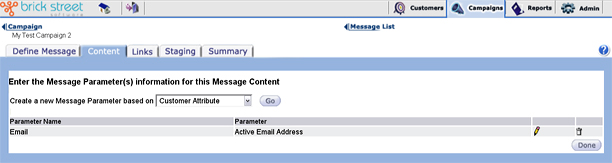
- Customer Attribute - Create a message parameter using any available customer attribute, such as occupation, address, buying preferences, and so forth.
- Recency Statistics - Create a message parameter using statistics related to the recency of customer behavior, such as the last link clicked or last message sent by customers.
- Frequency Statistics - Create a message parameter using frequency related statistics derived from customer behavior, such as the total number of links clicked or total number of items purchased by customers.
- Monetary Value Statistics - Create a message parameter using value-related metrics based on customer behavior and/or purchase history, such as the total value of links clicked in a certain time period or average value of campaign-related purchases.
When you have made your choice, click Go to access the Enter Message Parameter window for the type of parameter you chose.
Message parameters that have already been set up for the message will appear at the bottom of the screen. Click the edit (pencil) icon to edit a specific parameter, or click the delete (trashcan) icon to delete it.
Click Done to return to the Message Content Details page.