Once content is created, you are able to associate content for the main message to
specific segments. In the Messages screen, you drag the created content to the
segment that you wish to message. Once associated to a segment, the message is able to
be staged and launched to the customers.
Note: You must create content prior to creating
messages, else there is nothing to send. For more information on creating content,
please see Content Management.
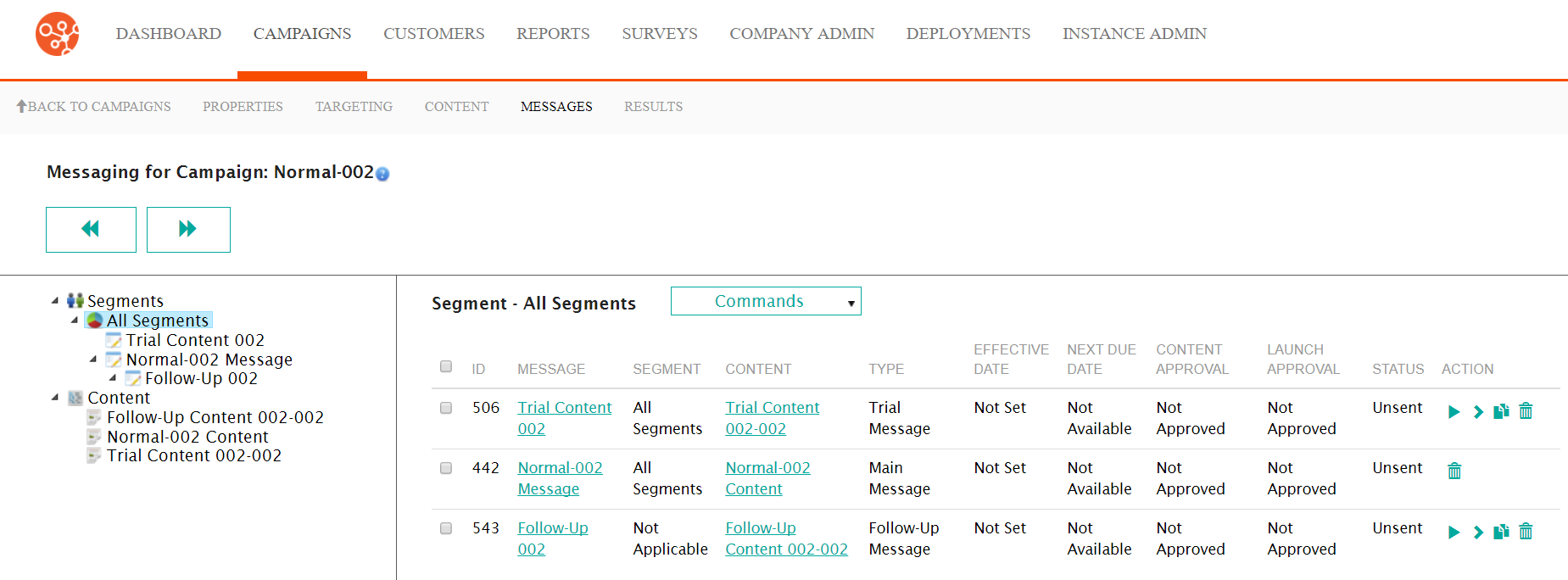
Creating a Main Message
To create a main message for a segment:
- Navigate to the Messages screen by clicking on the Messages
sub-tab in the Campaigns screen. In the left-side panel are displayed the
segments available to the campaign and the content that has been created.
- For more information on campaign segments, please see Segmentation
- For more information on creating content for campaigns, please see Creating and Managing Content
- Drag and drop the desired content in the left-side panel on to the desired
segment in the left-side panel. The Create New Message panel appears in
the right-side panel.

- Select the content you wish to send to the segment by selecting it from the With Content dropdown.
- To cancel without creating a message, click the Cancel button. The
segment and message information disappear.Note: If you cancel the message and decide that you wish to create a message, select the New Message option from the Commands dropdown. The Create New Message details display again.

- Click the Main Message button. The Configure Message To Segment
window appears.
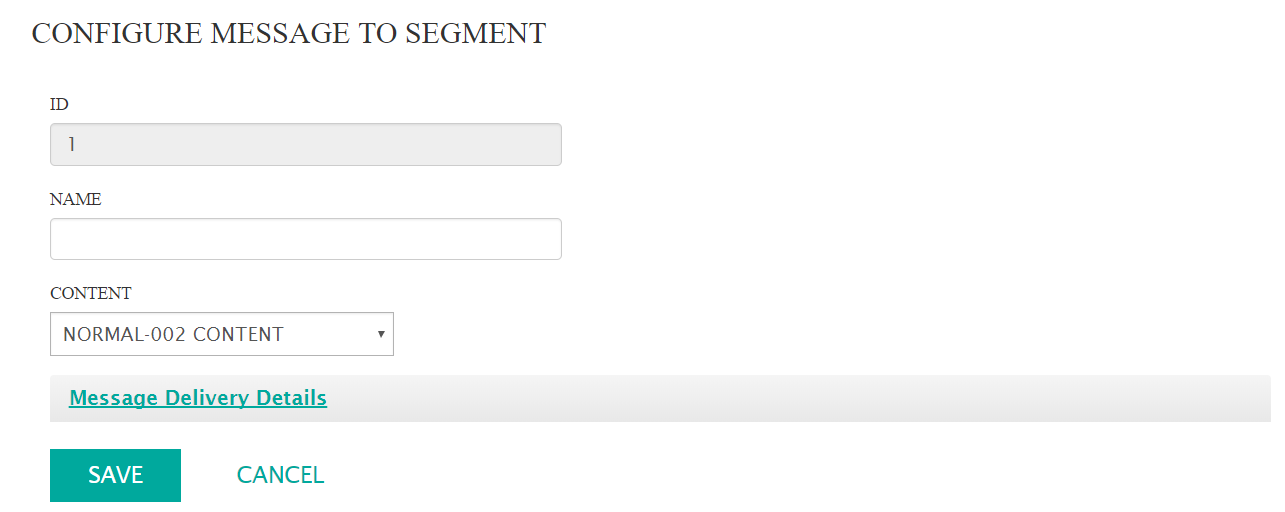
- Enter the message details:
- Name: The name for the message. This is used internally and not visible to the customer.
- Content: The content to be used for the message
- To enter the message delivery details, click the Message Delivery Details
link. The Message Delivery Details section appears:

- Enter the message delivery details:
- Active Deployment: Determines the deployment (i.e. cluster) that will be used to send the message
- Sending Mode: The mode by which the message will be
sent:
- Email Only: Messages only sent via email. Any customers without an email address will not be messaged
- SMS Only: Messages only sent via SMS. Any customers without an SMS number will not be messaged.
- SMS Preferred Over Email: Message is first attempted to be sent via SMS. If the customer does not have an SMS number, the customer's email address is used. If the customer does not have an email address, no message is sent.
- Direct Mail: Messages sent via direct mail
- If either Email Only or Direct Mail are selected as the
'Sending Mode', enter the following information:
- Delivery Channel: The delivery channel used to send the message
- Priority: The priority of the message in the message queue. The lower the number the higher the priority (e.g. a message of priority '20' has a higher priority than a message with priority '50')
- If either SMS Only or SMS Preferred Over Email are
selected as the 'Sending Mode', enter the following information:
- SMPP Server: The SMPP server that will be used to send the SMS message
- SMPP Message Mode: The SMPP message mode used to send the SMS message
- Request For Delivery Receipt: Checkbox that indicates whether a receipt is sent to confirm delivery of message to the customer or not
- Delivery Channel: The delivery channel used to send the message
- Priority: The priority of the message in the message queue. The lower the number the higher the priority (e.g. a message of priority '20' has a higher priority than a message with priority '50')
- Enter the message delivery details:
- To cancel without creating the message, click the Cancel button. The message details disappear. You are returned to the Messages screen.
- Click the Save button. The message appears underneath the selected
segment. The Bounce and Reply Handling section also appears.
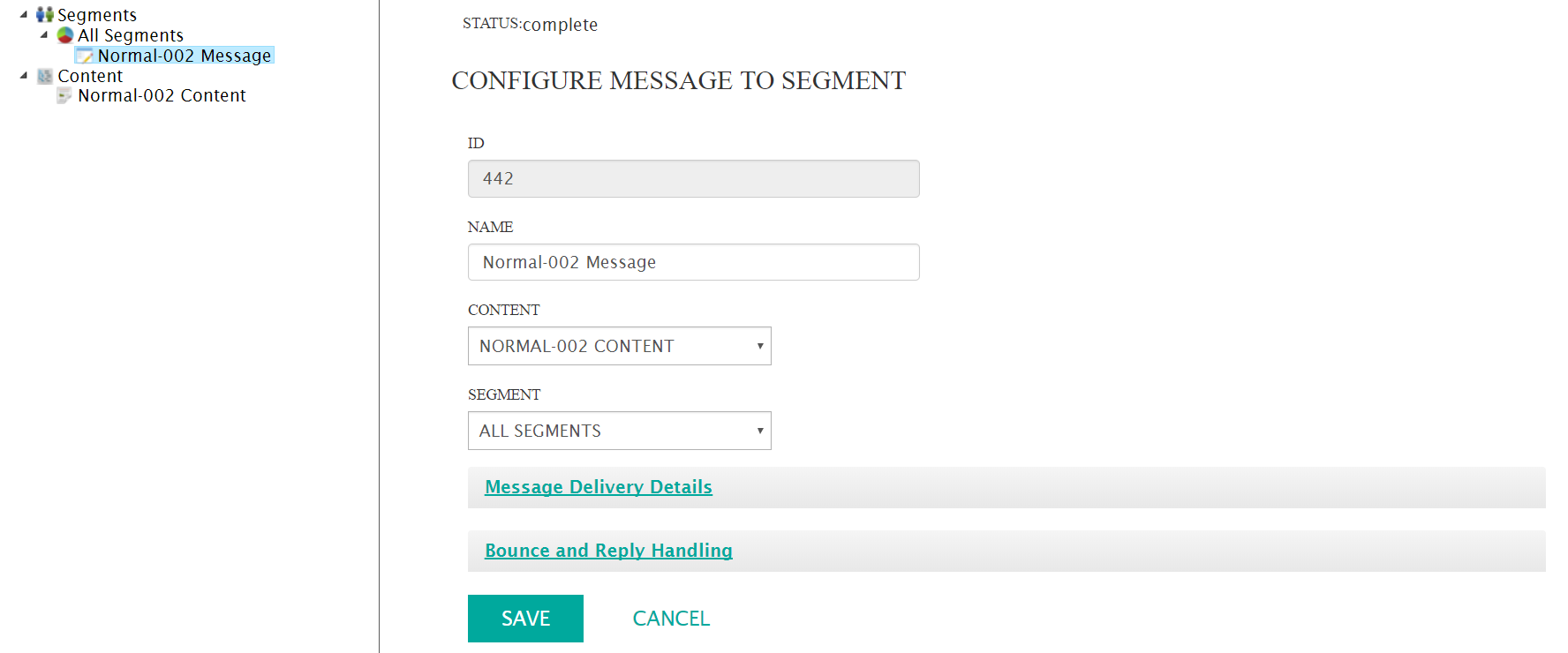 Note: Connect allows you configure bounce and reply event-triggered campaigns for a message. That is, if Connect receives a bounce or a reply from a customer following the message being sent, you can configure an event-triggered campaign that will send a message to the customer in this eventuality. For more information on configuring bounce and reply handling settings, please see Configuring Bounce and Reply Handling Messages.