If you choose a Recency Statistic parameter for dynamic or XML content on the Message Parameter Overview page and click Go, the system will take you to the Recency Statistics Parameter page. Here you can define message parameters for metrics associated with recency of customer behavior, such as the last time customers clicked links or sent messages in response to a campaign.
The Connect system will take the parameters you define here and pass them to your content generator (for messages using dynamic content) or XSL template (for messages XSLT content), which will in turn generate messages for each individual customer based on rules determined by you. For more information on this, see the topics in the Content Administration section of the Connect documentation set.
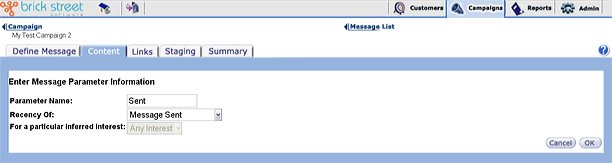
Enter a Parameter Name for this parameter.
- Message Sent - This refers to the last message sent to the customer.
- Link Clicked - This refers to the last link clicked by the customer. You have the option to narrow this link filter by specifying an interest category.
- Link Sent - This refers to the last link sent to the customer. You have the option to narrow this link filter by specifying an interest category.
- Conversion - This refers to the last time a customer clicked through a message to your site and made a purchase.
- Referral - This refers to the last time a conversion was made by a person that a target customer forwarded your message to.
As an example, say you want to check your audience against the recency of the last message sent to the customer. Highlight Message Sent from the drop-down list.
- Any Interest - This means the parameter will check for a link or conversion related to any inferred interest.
- A Specific Interest - Select from the drop down list box a specific inferred interest, such as Shopping or Financial Planning.
For more information, please refer to the topic Edit Parameter Attributes in the Administrative Tools section of this documentation.
Click the Cancel button to return to the Message Parameter Overview page without saving your changes.
Click the OK button to save changes and return to the Message Parameter Overview page.