If you chose a Frequency Statistic parameter for dynamic or XSL content on the Message Parameter Overview page and click Go, the system will take you to the Frequency Statistics Parameter page. Here you can define message parameters for metrics associated with frequency of customer behavior, such as the total number of messages sent by customers in the past week.
The Connect system will take the parameters you define here and pass them to your content generator (for messages using dynamic content) or XSL template (for messages XSLT content), which will in turn generate messages for each individual customer based on rules determined by you. For more information on this, see the topics in the Content Administration section of the Connect documentation set.
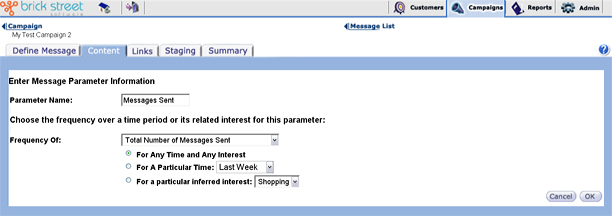
Enter a Parameter Name for this parameter.
- Messages-related statistics &endash; Parameters related to the reception or click-through of messages.
- Link-related statistics &endash; Parameters related to links sent or clicked by the customer.
- Conversion-related statistics &endash; Parameters related to conversions (purchases made by the customer) and referrals (purchases made by people who the customer forwarded your messages to).
- Total Number of Messages Sent - Use this metric to target customers based on the number of messages that have been sent to them.
- Total Number of Messages Clicked - Use this metric to target customers based on the number of messages that they have received and have clicked on at least one link.
- Percentage of Messages Clicked - Use this metric to target customers who have clicked one or more links in a certain percentage of messages (out of the total number of messages sent to that customer).
- Links Sent - Use this metric to target customers based on the number of links on the messages sent to that customer.
- Links Clicked - Use this metric to target customers based on the number of links that customer has clicked.
- Percentage of Links Clicked - Use this metric to target customers who have clicked a certain percentage of links out of the total number of links sent to them.
- Percentage of Links Clicked/Messages Sent - Use this metric to target customers who have clicked a certain percentage of links out of the total number of messages sent to them.
- Total Number of Conversions - Use this metric to target customers based on the total number of conversions (purchases) that they have made.
- Total Number of Referrals - Use this metric to target customers based on the accumulated number of conversions related to messages that they have referred to others.
- You can define a specific time period by selecting a value from the For a Particular Time drop down list box (you have a choice of Last Month, Last Quarter, Last Year, This Week, This Month, This Quarter, and This Year).
- You can define a specific inferred interest by selecting a value from the For a particular inferred interest drop down list box. The system will look for actions related to this interest, such as clicks on links related to it.
- Or you can simply choose For Any Time and Any Interest.
For more information, please refer to the topic Edit Parameter Attributes in the Administrative Tools section of this documentation.
Click the Cancel button to return to the Message Parameter Overview page without saving your changes.
Click the OK button to save changes and return to the Message Parameter Overview page.