Prior to rolling out messages, ensure that your campaign and messages are completed.
Rolling out messages allows you to:
- Perform a final count of the targeted customers that will be sent the message
- Approve the content and launch permission
- Schedule the date and time the message will be sent
- Send a pre-launch message to seed list group members
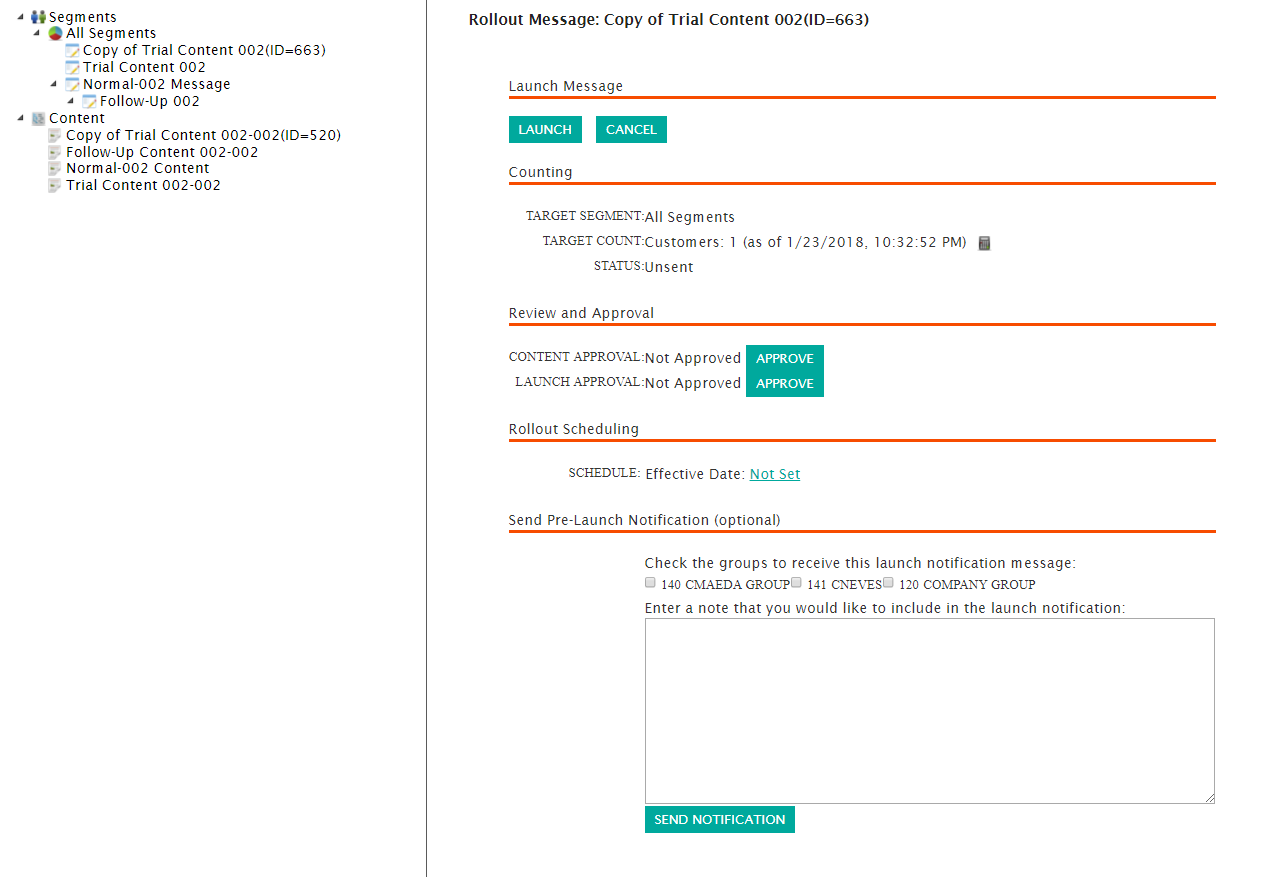
Rolling out a Message
To rollout a message:
- Navigate to the Messages screen for the desired campaign.
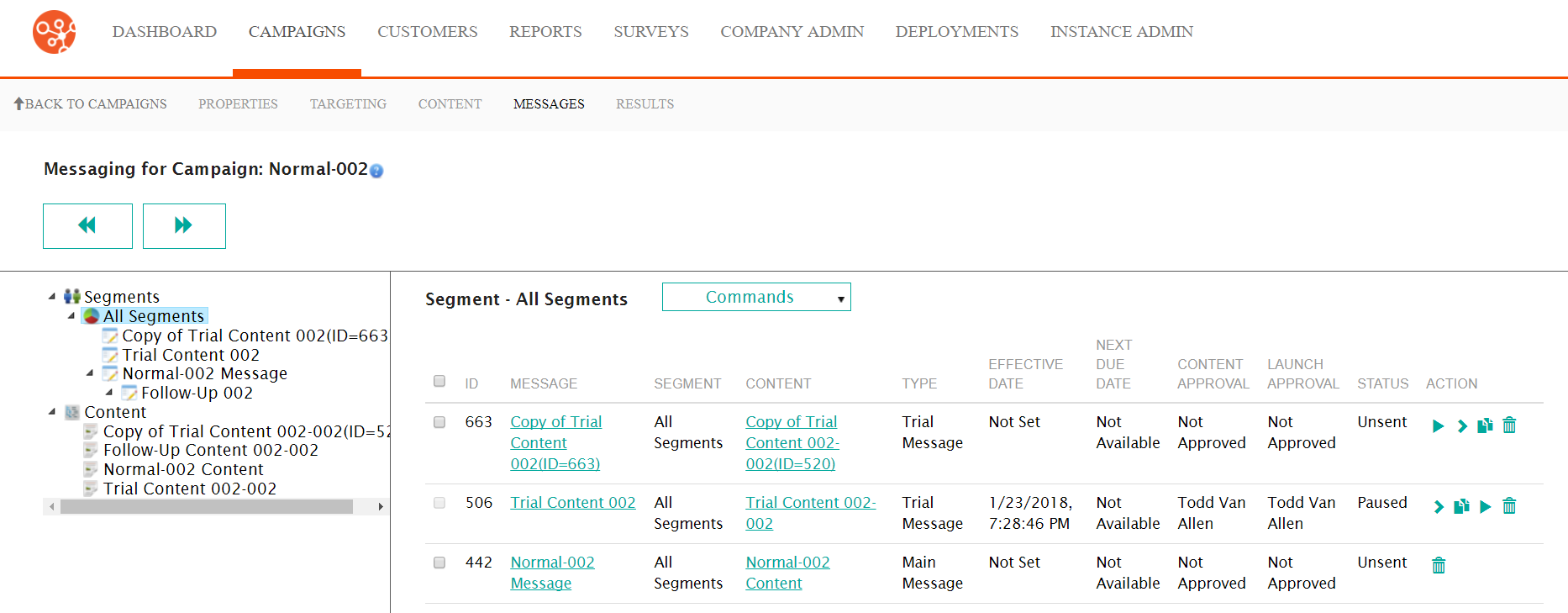
- Beside the desired message, click the Rollout icon (
 ).
The Rollout Message screen appears.Note: You can also rollout multiple unsent messages of the same type by selecting the checkboxes beside the desired messages and selecting Rollout Messages from the Commands dropdown. Ensure the messages are of the same type (e.g. all messages are main messages)
).
The Rollout Message screen appears.Note: You can also rollout multiple unsent messages of the same type by selecting the checkboxes beside the desired messages and selecting Rollout Messages from the Commands dropdown. Ensure the messages are of the same type (e.g. all messages are main messages) - To perform a final calculation on the message to see how many customers will
be targeted, click the Calculate Customers icon (
 ) in
the Counting section.
) in
the Counting section. - In the Review and Approval section, approve the following as
appropriate:
- Content Approval: Click the Approve button to approve the message content
- Launch Approval: Click the Approve button to approve
the message for launchNote: When you click the Approve button, the Remove Approval button appears in its place. If approval is revoked for any reason, you can do so by clicking the Remove Approval button. You are able to approve the message at a later time by re-clicking the Approve button.Note: The Approvals section only appears for Connect users who are assigned approval responsibilities for message content and message launch. The section will not appear for users without the appropriate permissions.
- In the Rollout Scheduling section, click the Not Set action
link. The Set the Schedule For This Message section appears.
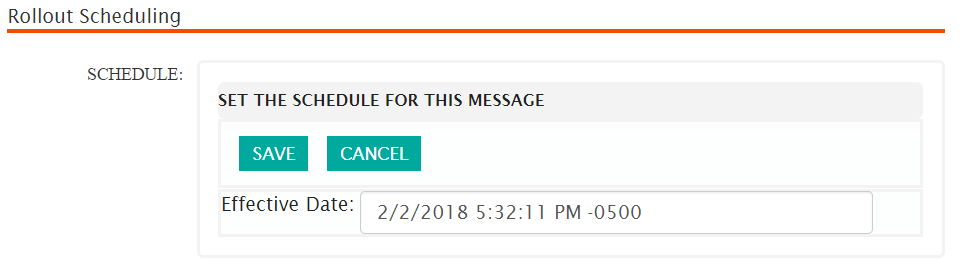
- To schedule the message:
- Click on the Effective Date field. The calendar for the
effective date appears.
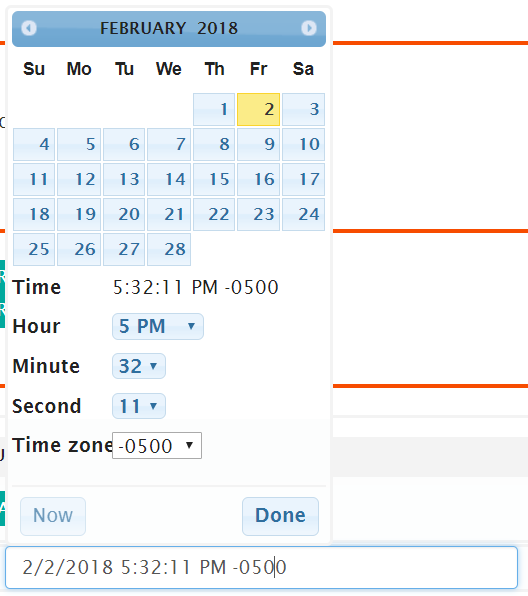
- Enter the appropriate date, hour, minute, second and time zone or click the Now button to send the message immediately.
- Click the Done button. The calendar disappears with the selected date and time displaying in the Effective Date field.
- To cancel the effective date without saving it, click the Cancel button. The Set the Schedule For This Message section disappears.
- Click the Save button. The Set the Schedule For This Message section disappears and the effective date for the message launch is displayed in the Schedule field.
- Click on the Effective Date field. The calendar for the
effective date appears.
- If you wish to send a pre-launch notification to members of a seed group, in
the Send Pre-Launch Notification (optional) section:
- Select the desired seed list group or groups by checking the appropriate checkboxes.
- Enter a note to the seed list participants in the note box entitled Enter a note that you would like to include in the launch notification:
- Click the Send Notification button.
- To cancel without rolling out the message, click the Cancel button. The Configure Message to Segment screen appears for the message.
- Once all approvals and effective date is selected, the message is rolled out and able to be launched. For more information on launching messages, please see Launching Messages.