Follow these directions to add a new audience model.
- From the Audience Model screen, click Command > New Audience. The
Create Audience Model screen appears.
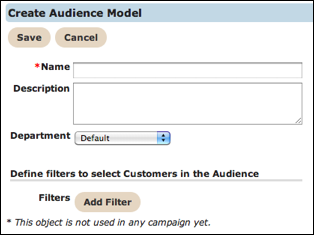
- In the Name field, type a unique name for the new audience model.
- In the Description field, type a description for the audience model.
- From the Department drop-down field, select a department.
- From the Define filters to select Customers in the Audience
section, do the following:
- Click the Add Filter button. The screen expands to display the
Create Filter section.
- From the Filter Type drop-down list, select the type of filter you want to use. The fields that follow change based on the Filter Type you select. The Filter Types section identifies the fields associated with each filter.
- Click the Save button in the Create Filter section. The screen contracts.
- Click the Add Filter button. The screen expands to display the
Create Filter section.
- Click the Save button. The Audience Model screen appears with the new audience model in the list.
Filter Types
When you create a new audience model, add filters to narrow down the audience. The filters help you pinpoint just the right portion of your audience. As previously stated, the fields change depending on the Filter Type you select. The following fields appear when you select a Filter Type.
| Filter Type | Fields |
|---|---|
| Customer Attributes | Attribute Criteria Value(s) Ignore Case |
| Recency Statistics | Recency of Last Criteria Values(s) Days ... the launch |
| Frequecy Statistics | Frequency Metric Criteria Value(s) |
| Monetary Value Statistics | Monetary Value Inferred Interest Criteria Value(s) |
| User Agent Tag | In List |