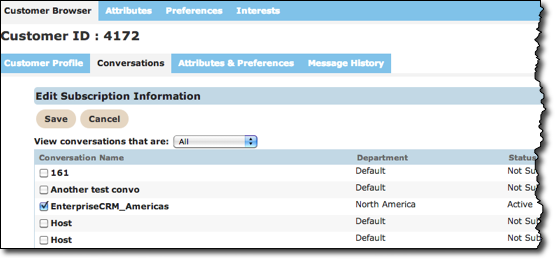
The Customer Browser Conversations screen is where you subscribe the customer to conversations. When you add a conversation or make changes to the subscriptions from the Customer Browser tab, those changes are associated with a particular customer.
If a check mark appears beside a conversation name, that customer is part of the selected conversation.
Add Conversations
Follow these instructions to add conversations to a customer profile.
- Fom the Customer Browser, beside the customer you want, click Actions > Conversations. The Edit Subscription Information window appears.
- From the View conversations that are: drop-down field, select the conversation criteria you need. The default is All.
- Click the check boxes beside one or more conversations to associate the conversations to the selected customer.
- Click the Save button to save the conversation.
Edit Conversation Subscriptions
Follow these instructions to edit conversation subscriptions.
- Fom the Customer Browser, beside the customer you want, click Actions >
Conversations. The Edit Subscription Information window
appears.
- Click a check box with a check mark to remove the customer from a conversation.
- Click an empty check box to add the customer to a conversation.
- Click the Save button to save the customer's profile.