One thing you might want to know about your email message is which link was clicked most often. Connect provides this information. In the following example, the report is created using the Campaign Reports option. Follow these directions to find the link with the most clicks.
- From the Connect screen, click the Report tab. The available reports are listed.
- Click Campaign Reports. The Campagin Reports screen appears.
- At the top of the screen, click the Category field to display a drop-down list.
- From the Category drop-down list, select Conversation. The report
changes to display only conversations in the first column.
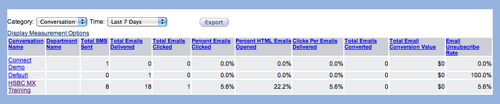
- In the Time field, click the field to display a drop-down list.
- In the Time drop-down list, select the time period when you sent out the message. The report changes to display conversations for the time period you selected.
- In the Conversation Name column, click the link for the conversation you want to view. A
new Campaign Report appears to display the campaigns associated with the
specific converstation.
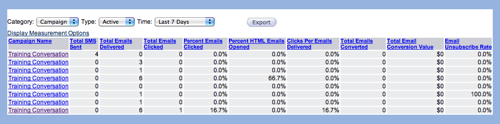
- In the Campaign Name column, click the appropriate campaign name. A
Message report appears.

- In the Message Name column, click the appropriate message name. A
Summary report appears.
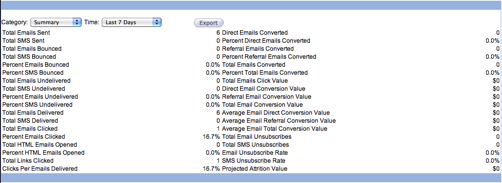
- In the Category drop-down list, select Link. A Link report appears.
- Click the Total Links Clicked column heading to sort the table by the total number of links clicked.
