Connect can display the total number of messages that were clicked in a specific campagin. Follow these directions to create a messages clicked report.
- From the Connect screen, click the Report tab. The available reports are listed.
- Click Campaign Reports. The Campagin Reports screen appears.
- Click the campaign with the information you want to view. A Message Report appears.

- In the Message Name column, click the message you want to view. A Summary
Report appears.
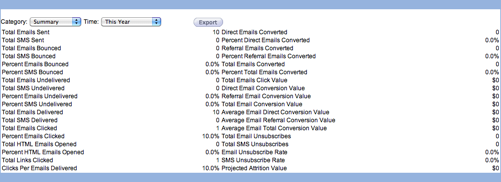
- From the Category drop-down list, select Demographic. The Demographic
Report appears.

- From the Demographic drop-down list in the Demographic Report, select Email Client Type. A breakdown of email message statistics by email client type (AOL, HTML, text...) appears.
- From the Email Client Type report, click Display Measurement Options. The measurement options list appears.
- From the options list, click the Total HTML Messages Clicked checkbox. The Total
HTML Message Clicked column is added to the list.
