The Campaign Drill Down Report displays a list of all campaigns in the system. The report provides links to the campaign details in the Campaign Name column. When you click the campaign link, a screen appears with a table that displays more information about the campaign. The information in the table also links to more detailed information about the campaign. If the campaign has a seedlist, you can click Yes to view the seedlist.
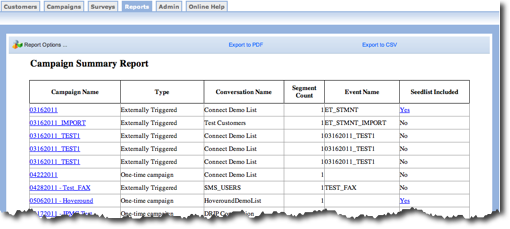
At the top of the report screen, you can choose new report options and export the report to different formats.
View Different Report Information
When you click a link in the Campaign Name column or Seedlist Included column, you can view more information about the campaign or the seedlist. For example, in the image above, if you click the 03162011 link in the table, the following report appears:
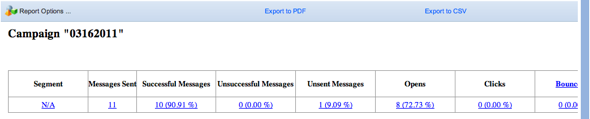
If you click the link in Messages Sent column the following report appears:
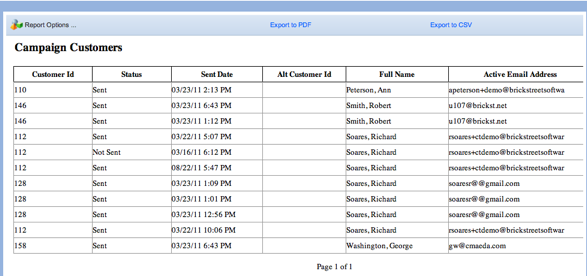
If you click any link in the table, you see more information about the column in the report. Some links lead to more links.
NOTE: When you change the reporting options or export the report, it applies only to that screen and not the information for the entire campaign.
Select New Report Options
If you want to only view campaigns for a certain time period, you use the Report Options to change the date range and more.
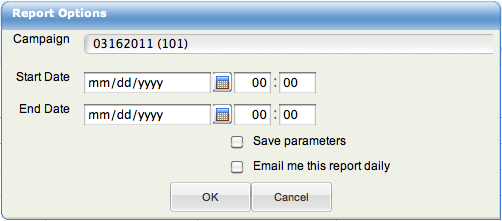
- From the Campaign Drill Down report screen, click the Report Options link in the top left corner of the tab. The Report Options dialog box appears.
- In the Start Date field, type the month, day and year you want to start your date range. The time part of the field is optional. (Click the calendar icon to select the date.)
- In the End Date field, type the month, day and year you want to end your date range. The time part of the field is optional. (Click the calendar icon to select the date.)
- To save the start and end date, click the checkbox for Save parameters.
- To receive a daily email with the customer report data, click the checkbox beside Email me this report daily.
- Click the OK button to save your settings. The report displays information based on the new parameters.
NOTE: When you change the reporting options or export the report, it applies only to that screen and not the information for the entire campaign.
Export to PDF
If you want to view the current information (the information on the screen) in a printable format, you can export the information to PDF. Follow these directions to export to PDF.
- From the Campaign Drill Down report screen, click the Export to PDF link. The file is exported.
- Save the PDF in the location of your choice.
Export to CSV
- From the Campaign Drill Down report screen, click the Export to CSV link. The file is exported.
- Save the CSV in the location of your choice.