When a Connect user creates a new conversation, it is automatically assigned to the user's department. Users assigned to the same department and users with global permissions can view the conversation. Global permissions provide the user with the ability to view conversations in any department.
If a conversation is assigned to the wrong department or needs to be changed for some other reason, only users with global permissions can change the department assigned to the conversation. The department associated with the conversation can be changed even if it is already assigned to a campaign.
Create a New Conversation
Conversations are created from the Customers > Conversations tabs. A person with all access permission can create a conversation in any department or change the department in any conversation.
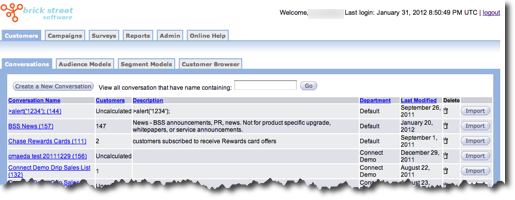
The following directions provide a general guideline for creating a new conversation. For more detailed information see Create and Edit Conversations.
- From the Conversations tab, click the Create New Conversation button.
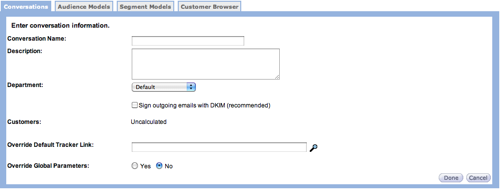
- Add the information for the conversation in the screen. Make sure you select the appropriate department.
- Click the Done button when complete.
Edit a Conversation with the Department field
To make changes, the administrator can click any conversation from the list in the Conversation Name column and change the conversation details as required
Subscriptions
- Users associated with one department only see subscriptions associated with that department.
- Users with global persmissions can see all of the customer's subscriptions regardless of the department.