This section provides information about configuring various system parameters to support the DomainKeys/DKIM feature. From the Connect main screen, navigate to Admin > System Configuration > System Parameters. Refer to the following table for more information about configuring system parameters.
| Name of the System Parameter | Location | Purpose |
|---|---|---|
| Selector for the receiving domain | Category: Mail SendingAccess Level: Internal | Use this system parameter to specify the receiver domain selector to use when e-mail signing is turned on. |
| Turn on signing by default at the conversation level | Category: Mail SendingAccess Level: Internal | Use this system parameter to determine whether signing is enabled or disabled by default when a new conversation is created. |
| Signing algorithm for outgoing email | Category: Mail SendingAccess Level: Internal | Use this system parameter to determine the signing algorithm for outgoing email. Connect supports the following signing algorithms: 0 - No Signing, 1 - DomainKeys-Simple, 2 - DomainKeys-nofws, 3 - DKIM-Simple |
| Private key for signing outgoing email | Category: Mail SendingAccess Level: Internal | Set the private key used for signing outgoing email. Outgoing e-mail is not signed unless a signing algorithm is specified. |
| Enable signing for outgoing email | Category: Mail SendingAccess Level: Internal | Use this system parameter to enable/disable signing for the outgoing email messages at the global level. This system parameter acts as a switch. No email is signed when this system parameter is set to false. |
Message Signing at the Conversation Level
Connect provides the ability to turn off signing at the conversation level. If signing is turned off at the conversation level, the outgoing e-mail messages are not signed even if signing is turned on for a receiver domain.
Follow these directions to sign outgoing email messages.
- From the main Connect screen, click Customers > Conversations.
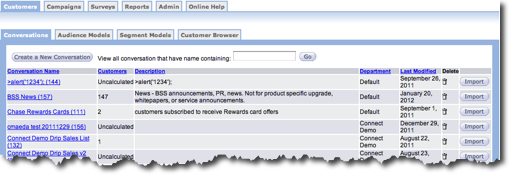
- Click the Create a New Conversation button to define a new
conversation or click a conversation name to edit an existing conversation.
The image below is an existing conversation.
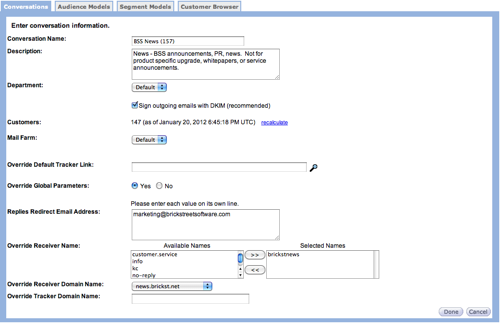
- If you are creating a new conversation, add the conversation details as appropriate or make your changes if you are editing an existing conversation.
- Click the checkbox beside Sign outgoing emails with DKIM (recommended) field to make sure automatic signing is turned on. Outgoing e-mail messages are signed only if the corresponding receiver domain has signing turned on.
- In the Override Receiver Domain Name drop-down list, select the
appropriate option. Note: The Override Receiver Domain Name drop-down list is enabled only when the Override Global Parameters option is set to Yes. Default settings are used if you do not override the receiver domain.
The following table provides detailed information about signing the outgoing e-mail messages based on various configured settings.
| Enable Signing for Outgoing EMail at System Parameter Level | Signing Outgoing Email at Conversation Level | Signing Outgoing EMail at Receiver Domain Level | Action |
|---|---|---|---|
| No | No | No | Outgoing email is not signed. |
| No | No | Yes | Outgoing email is not signed. |
| No | Yes | No | Outgoing email is not signed. |
| No | Yes | Yes | Outgoing email is not signed. |
| Yes | No | No | Outgoing email is not signed. |
| Yes | No | Yes | Outgoing email is not signed. |
| Yes | Yes | No | Outgoing email is signed if a default receiver domain is selected at the conversation level. Outgoing email is not signed if a receiver domain (with signing turned off) is selected at the conversation level. |
| Yes | Yes | Yes | Outgoing email is signed. |