If you go to the Segmentation Model List page, select Custom Sized Segments Randomly Selected and click Go, the system will bring you to the Segmentation Model Definition page. This page enables you to define segments based on custom sized random selections of customers.
You can use custom sized segments of randomly selected customers to separate the audience into any number of segments of the size you choose. The size is specified as a percentage of the audience. Customers are put into segments randomly and no customer is put into more than one segment.
Do not try to use random sized segments if your audience is smaller than 100. You run the risk of the entire audience falling into the first segment and all subsequent segments being of size 0.
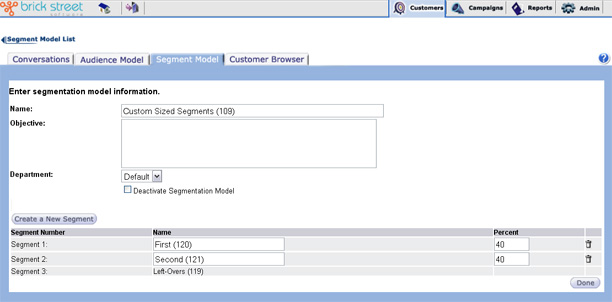
- Entering the Name of the segmentation model. Make the name unique so that you can easily identify this model at a later time from a long list of segmentation models.
- Entering the segmentation model Objectives. The objectives should help anyone who wants to use this model understand what the model is designed to do.
- Segment 1 is a blank segment with an audience percentage set to zero (in the Percent column). The system will not allow you assign to filters to these segments; all you can do is define the audience percentage to be included in the segment.
- Segment 2 is called Left-Overs. For more information on leftovers and why this segment was created, see the section Understanding Leftovers.
- Click Create a new segment to create new segments, name them, and assign audience percentages to them.
- Rename and/or redefine audience percentages for segments.
- Click the Done button to save changes to the segmentation model and return to the Segmentation Model List page.
- Delete segments by clicking their delete (trash) icon.