Set up mail farms for your email.
Add New Mail Farm
Follow these directions to add a new mail farm.
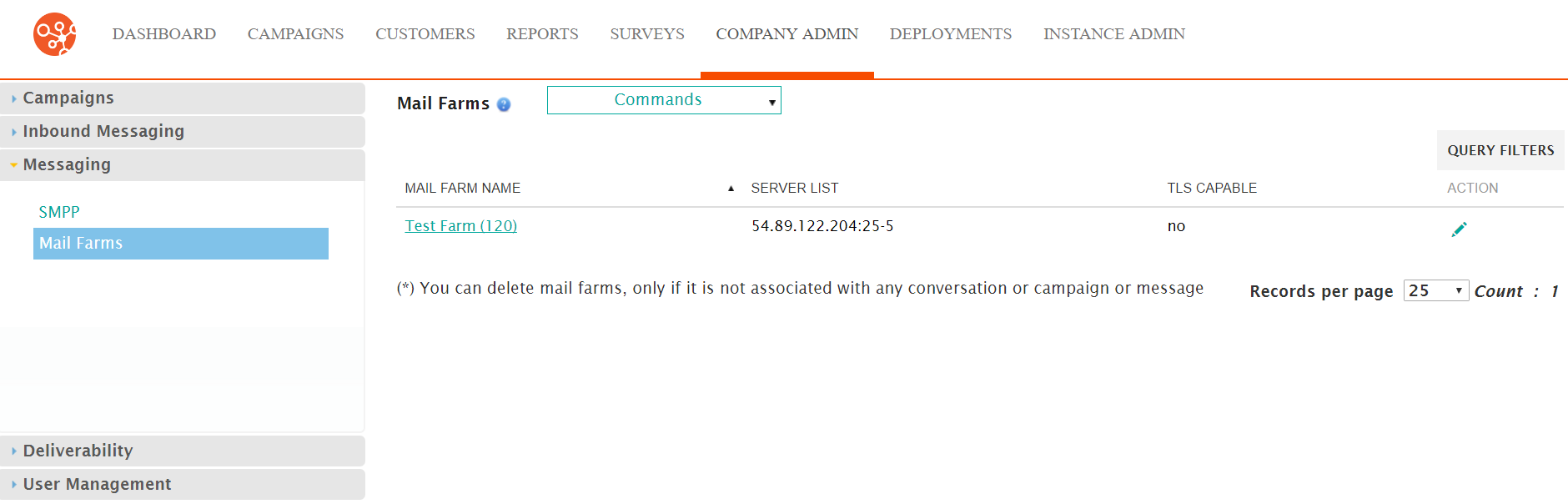
- From the Mail Farms screen, click Commands > New Mail Farm.
The Enter Mail Farm Details screen appears.
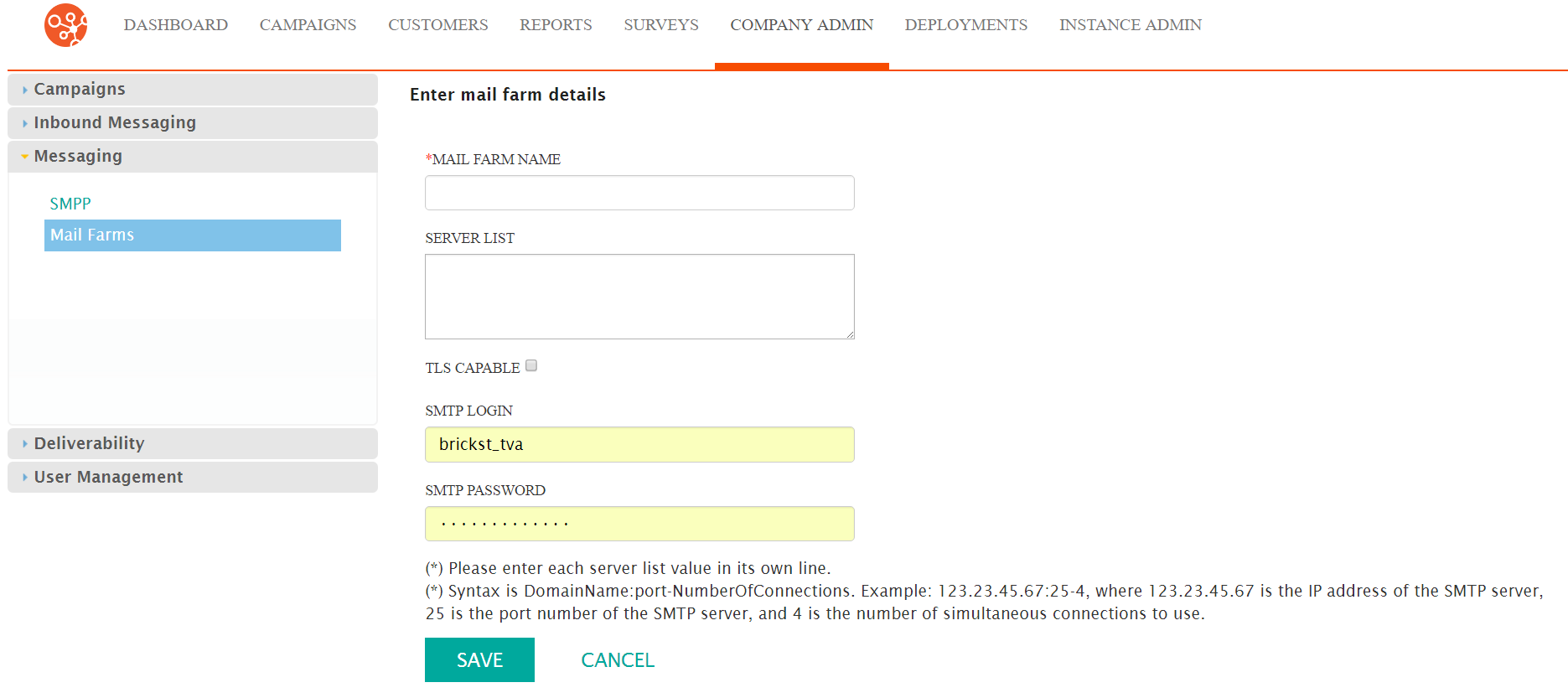
- In the Mail Farm Name, type a unique name for the mail farm.
- In the Server List field, type each server on a separate line.
- Click the TLS Capable checkbox to enable Transport Layer Security.
- In the SMTP Login field, type the server login.
- In the SMTP Password field, type the password for the server.
- Click Save. The Mail Farms screen appears with the new mail farm added to the list.
Edit Mail Farm
Follow these directions to edit a mail farm.
- From the Mail Farms screen, click Actions > Edit. The Enter Mail Farm Details screen appears.
- Make your changes.
- Click Save. The Mail Farms screen appears and your changes are saved.
Delete Mail Farm
Follow these directions to delete a mail farm.
- From the Mail Farms screen, click Actions > Edit. A confirmation dialog box appears.
- Click OK in the dialog box. The mail farm is removed from the list.
