A reply handler processes emails sent to you by customers and either takes a specific action or routes the email to one or more designated company email addresses. The Reply Handlers recognize and handle many types of replies including subscribe verifications, unsubscribes, and auto-replies. Email that cannot be handled automatically by the reply handlers can be routed to customer service.
When Connect receives inbound messages from any source, they are handled by the Mail Processor. The Mail Processor executes a sequence of reply handlers for each message. Each reply handler examines the message and determines whether it is able to manage the message or not. If a reply handler can handle the message, it does so and the processing stops. If the reply handler cannot, the next reply handler in the sequence is called. Complex and sophisticated inbound message handling logic can be implemented by sequences of reply handlers. Each of the configured reply handlers displays in the Reply Handlers Chain section of the Mailboxes page.
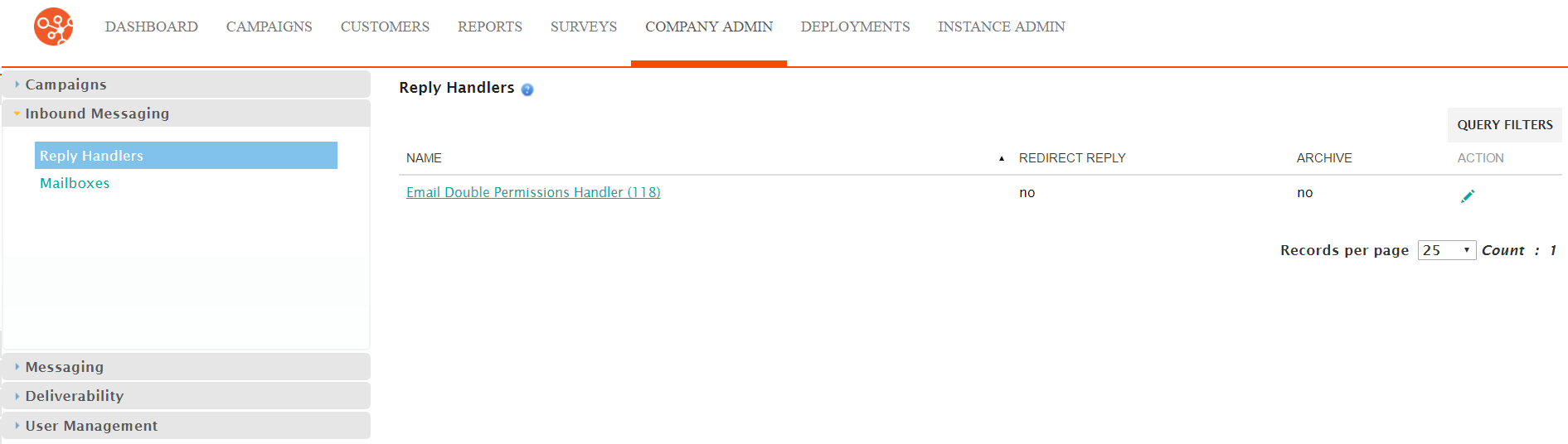
Edit Reply Handlers
- From the Reply Handlers screen, click Actions > Edit beside
the reply handler you want to modify. The Enter Reply Handler
Information screen appears.
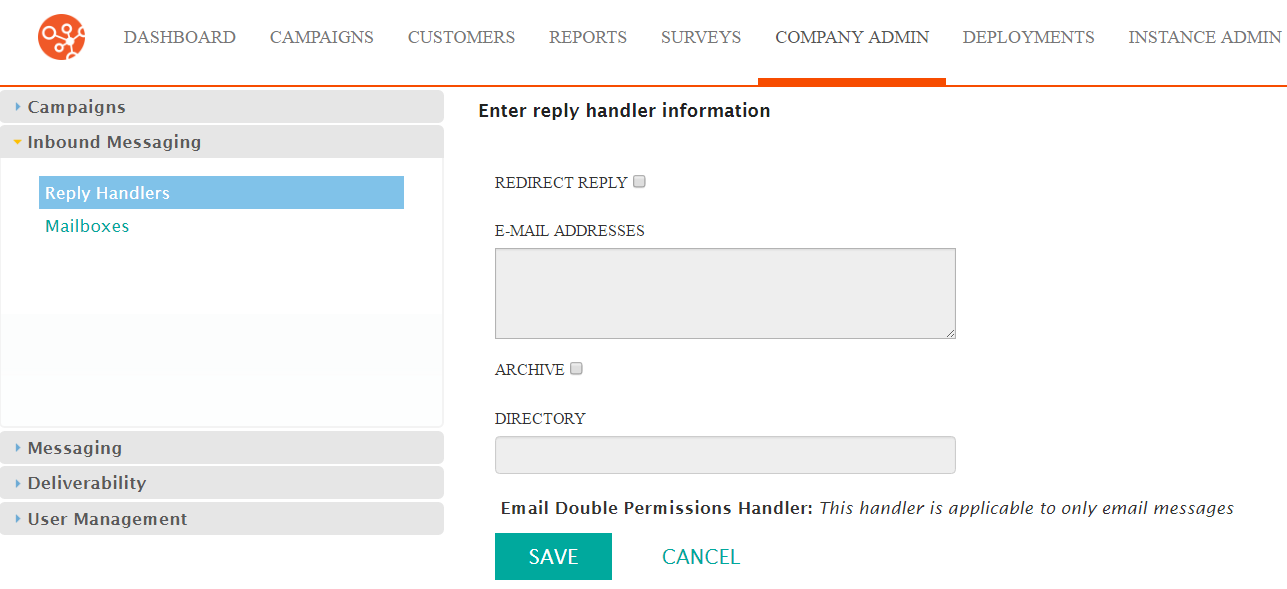
- Click the Redirect Reply checkbox if you want to redirect the customer's reply.
- In the Email Addresses field, type one or more email addresses. Separate multiple email addresses by a comma.
- Click the Archive checkbox if you want to archive the reply handler. The Directory field is activated.
- In the Directory field, type the archive directory path.
- Click the Save button. The Reply Handlers screen appears.
