To send messages, you need to identify the domains and connections where you send email. When you add a new domain, you can edit the domain information but you cannot delete it.

Add New Domains
Follow these directions to add a new domain.
- From the Domains screen, click Commands > New Domain. The
Enter Domain Information screen appears.
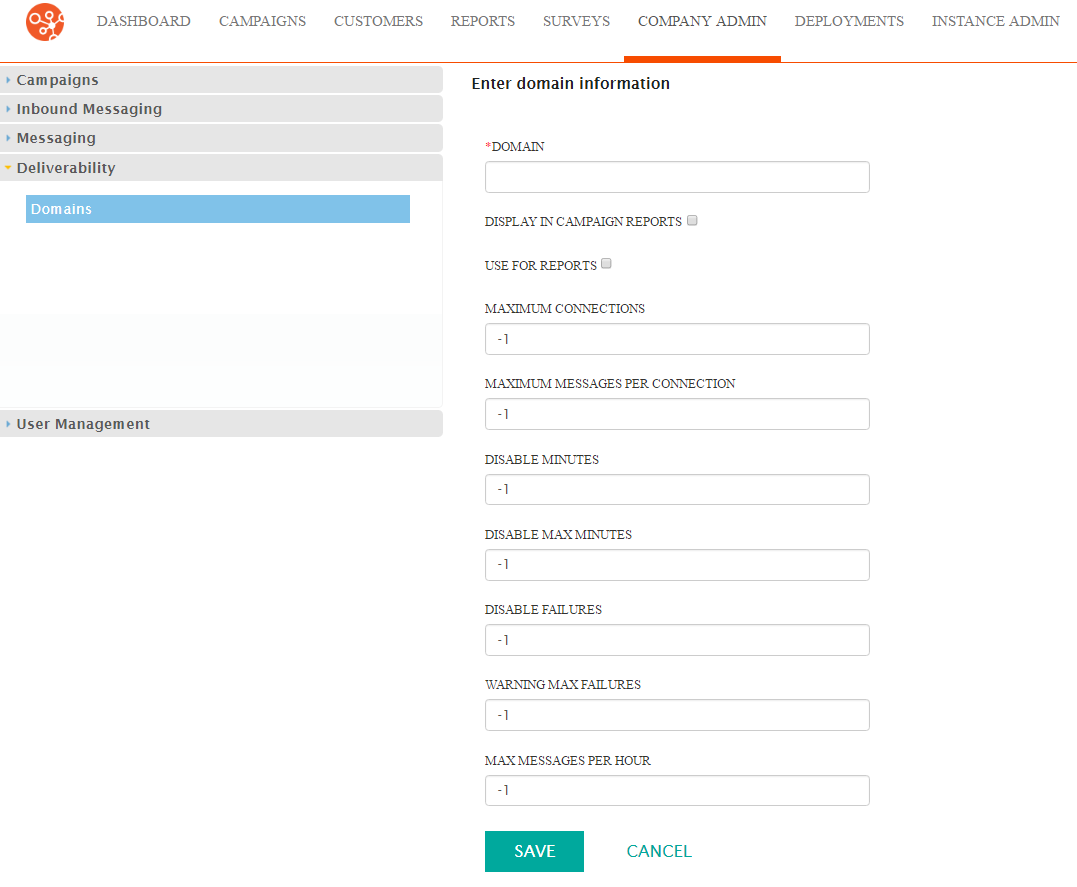
- In the Domain field, type the new domain name.
- Click the Display in campaign reports checkbox if you want the domain statistics to appear in reports specific to the campaign.
- Click the Use for reports checkbox if you want to include domain information in reports.
- In the Maximum Connections field, type the maximum number of connections the domain can handle.
- In the Maximum Messages per connection field, type the maximum number of messages that can go through a connection to the domain.
- Type the appropriate information in the following fields:
- Disable Minutes -
- Disable Max Minutes -
- Diable Failures -
- Warning Max Failures -
- Max Messages Per Hour -
- Click the Save button to save the domain. The Domains screen appears with the new domain in the list.
Edit a Domain
Follow these direction to edit a domain.
- From the Domains screen, click Actions > Edit on the row with the domain you want to change.
- Make your changes.
- Click the Save button to save the modifications. The Domains screen appears.
