Once a message is rolled out, you are still able to view and edit when the message is
scheduled to be sent.
Note: You are not able to edit rollout scheduled time if the time
has passed.
Viewing and Editing a Message's Rollout Schedule
To view and edit a message's rollout schedule:
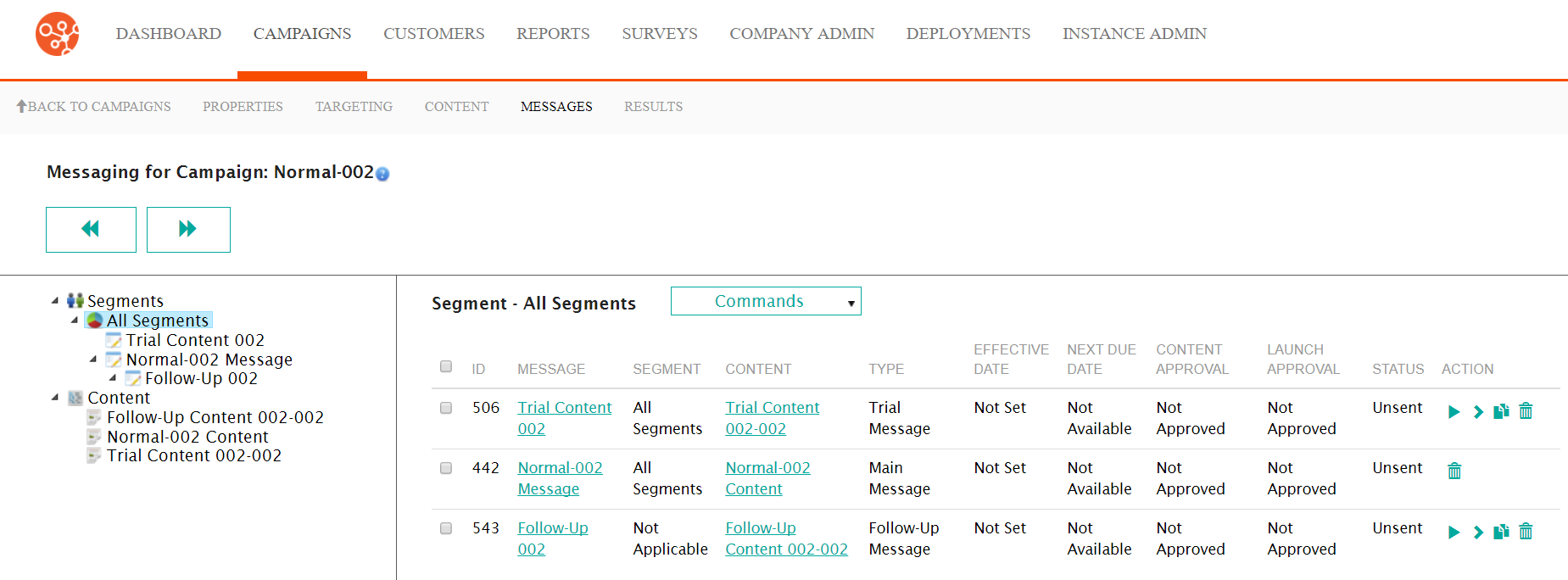
- Navigate to the Messages screen for the desired campaign.
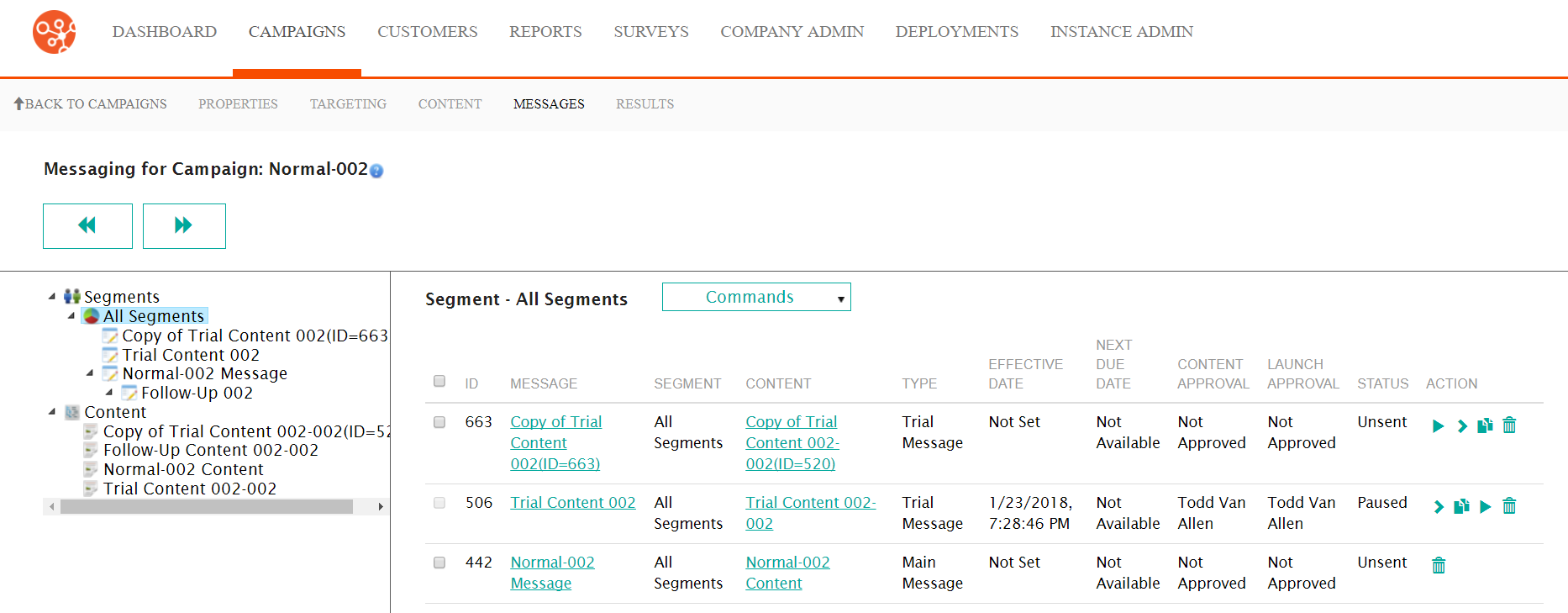
- Beside the desired message, click the Rollout icon (
 ).
The Rollout Message screen appears.
).
The Rollout Message screen appears.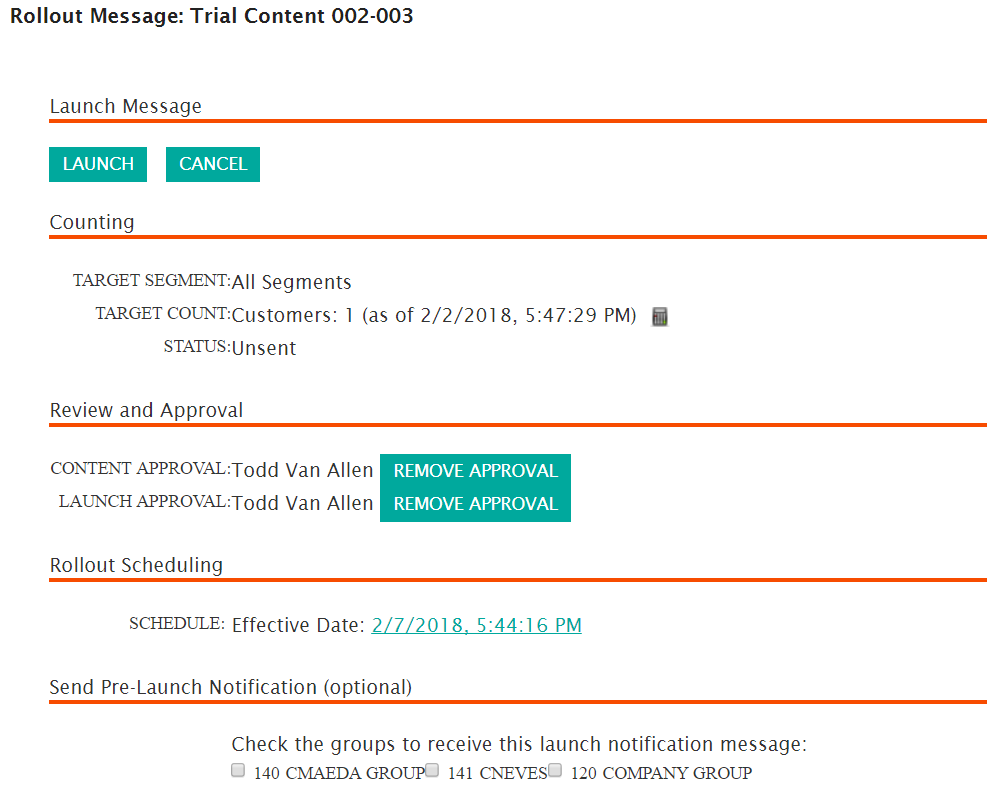
- In the Rollout Scheduling section, click the date and time action
link. The Set the Schedule For This Message section appears.
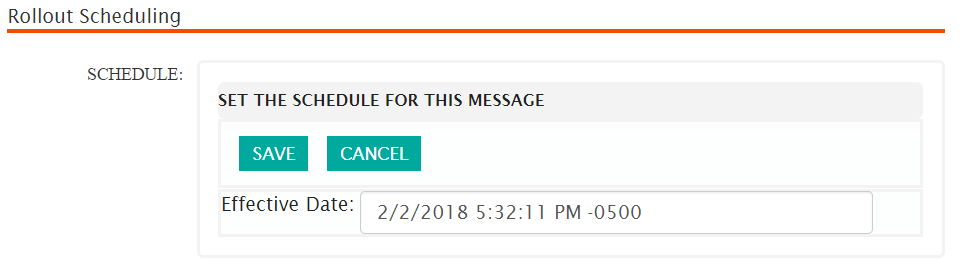
- To edit the scheduled time and date of the message:
- Click on the Effective Date field. The calendar for the
effective date appears.
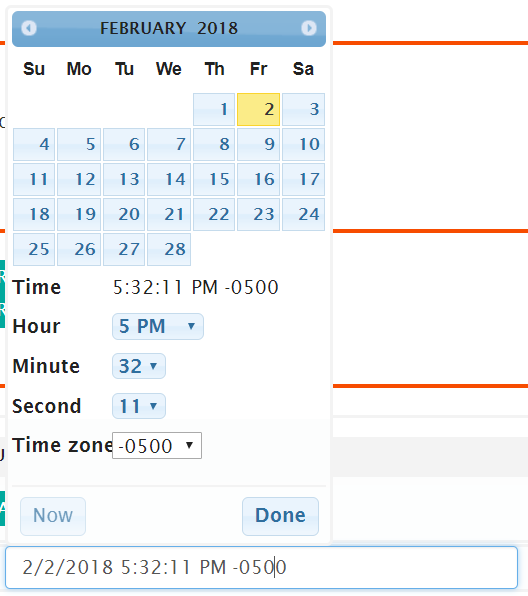
- Enter the appropriate date, hour, minute, second and time zone or click the Now button to send the message immediately.
- Click the Done button. The calendar disappears with the selected date and time displaying in the Effective Date field.
- To cancel the effective date without saving the changes, click the Cancel button. The Set the Schedule For This Message section disappears.
- Click the Save button. The Set the Schedule For This Message section disappears and the updated effective date for the message launch is displayed in the Schedule field.
- Click on the Effective Date field. The calendar for the
effective date appears.