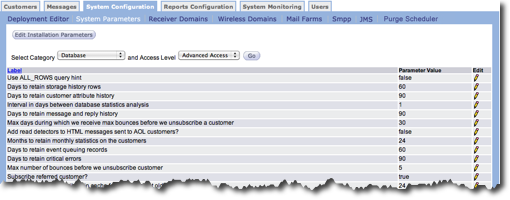
The default System Configuration screen is System Parameters. From this screen you can edit installation parameters, display system paramter labels and values by Category and Access Level and edit individual parameter values.
System Parameters are established at installation and are used throughout Connect. It should not be necessary to change parameters. If you do need to change parameters, those changes must be made by the system administrator. Incorrect system parameters can cause the system to fail unexpectedly or corrupt the data causing problems that can affect your customers.
WARNING: The system cannot properly validate parameter values that contain spaces. Be sure that your parameter values do not contain spaces.
From this screen, you can sort the lists based on category and access level, edit user-defined parameters and, if you have the proper permissions, edit the installed parameters. For more information about editing system parameters, see Edit System Parameters.
Edit Installation Paramters
You can edit the parameters installed with Connect if you have the appropriate parameters. If you do not have the appropriate parameters, contact your system administrator for help. Follow these directions to edit system parameters.
- From the System Configuration tab System Parameter screen,
click the Edit Installation Parameters button. The Installation
Parameter screen appears.
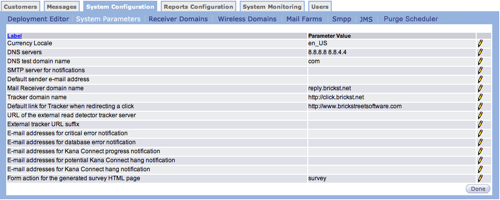
- In the row with the parameter you want to change, click the edit icon
 . The Parameter content screen appears.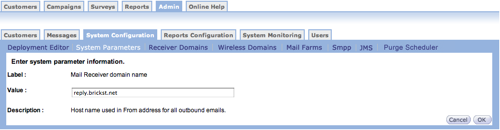
- Make your changes.
- Click OK to save your changes. The Installation Parameter screen appears.
- Click Done in the Installation Parameter screen. The System Parameters screen appears.
Sort System Parameters Screen
- From the System Configuration tab System Parameter screen, click the Select Category field to display a drop-down list.
- From the list, select the category you want. Options include:
- Connectweb
- Content
- Database
- Internationalization
- Main Receiving
- Mail Sending
- Network
- Notification
- Smpp Receiving
- Smpp Sending
- Click the Access Level field do display a drop-down list.
- From the list, select the level you want. Options include:
- Normal Access
- Advanced Access
- Internal Access
- Click the Go button. The table displays the all parameters that meet your criteria.