When you click Link Overview on the Messages tab, Connect displays a list of campaigns. From this list you can select a campaign and display the messages defined for it. You can display and update the links contained in each specific message.
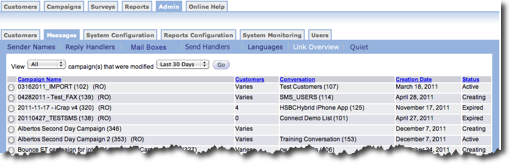
Sort Link Overview Table
You can choose the messages that you want to display in the Link Overview table. Follow these directions to select messages:
- From the Messages tab Link Overview screen, in the View
field, select an option from the drop-down list. Options on the drop-down
list include the following:
- All - Displays all campaigns in the time period specified.
- Expired - Displays expired campaigns in the time period specified.
- Active - Displays currently active campaigns in the time period specified.
- Creating - Displays campaigns that are not active but are in the process of being created in the time period specified.
- In the modified field, select an option from the drop-down list. Options
on the drop-down list include the following:
- All - Displays all campaigns for the status you select.
- Last 7 Days - Displays created in the last 7 days.
- Last 30 Days - Displays created in the last 30 days.
- Click the Go button. The table changes to display information based on your selections.
Display Links to Edit
After you filter the list, you can view the links for the a specific campaign. Follow
these directions to display the links for a specific campaign.
- From the Messages tab Link Overview screen, click the radio button beside the campaign with the links you want to view.
- At the bottom of the list, click the Show Messages button. The
Messages screen appears with all of the messages for the campaign.
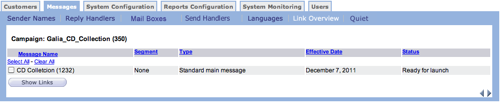
- From the Message screen, click one or more checkboxes beside the messages you want to view.
- Click the Show Links button. A list of content types (HTML, text and
so on) appears for each message you selected.

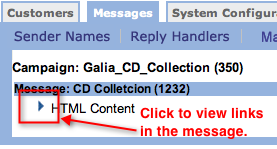
- To view the links in a content type, click the small arrow to the left of
the content type. The link expands to display the links in the content type.