When you select messages from a specific campaign and click the Show Links button, the message content type window appears. This window displays all of the content types you created for the selected message. From this screen you can view, edit, and recheck the links for each message's content type.
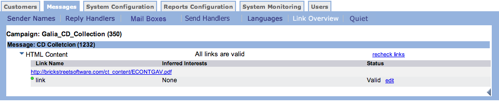
When you click the arrow beside a content type, the topic expands to display the Link Name, URL, Inferred Interests, and Status for each link. If you have the same link in the text and HTML versions of a message, the system saves two copies of the link in the database.
Links with a Valid status display a small green dot beside the name. Click the URL for a valid link to view the link destination.
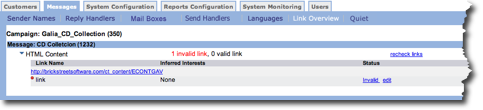
Invalid links display a small red dot beside the name.
Edit Link
- From the Campaign: <campaign name> screen, in the Status
column, click the Edit link. The link screen appears.
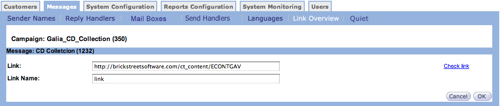
- In the Link field, type a new URL or correct the existing URL.
- In the Link Name field, type a new name if needed.
- If you want to check the link, click Check link. The link status appears below the Link Name field.
- Click OK to save your changes. The content type list appears.
Recheck Links
This procedure assumes that you have expanded a content type. Follow these direction to recheck all links.
- From the Campaign: <campaign name> screen, click Recheck Links. Connect checks all links.
- The link status appears in the Status column.
Fix Invalid Links
- From the Campaign: <campaign name> screen, Status column, click Invalid. The link screen appears.
- Fix the link.
- Click OK to save the link. The Campaign: <campaign name> screen appears.
- Click Recheck Links to make sure all links are valid.