From the Sender Name field, you add a new sender name or edit an existing sender name.
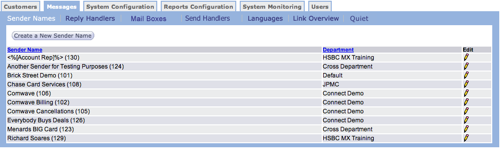
Add New Sender Name
Follow these directions to add a new sender name.
- From the Messages tab Sender Name screen, click the Create
a New Sender Name button. The Enter sender name information
screen appears.
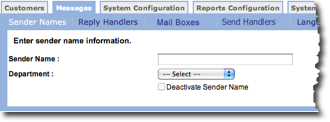
- In the Sender Name field, type a unique sender name.
- In the Department field, select a department from the drop-down list.
- In the Deactivate Sender Name field, click the check box if you want to create the sender name but not use it.
- Click OK to save the sender name and return to the Sender Name screen.
Edit Sender Name
Follow these directions to edit a sender name.
- From the Messages tab Sender Name screen, click the edit icon on the row with the sender name you want to edit.
- Make your changes.
- Click OK to save your changes and return to the Sender Name screen.