When you click the Create a New Audience Model button on the Audience Model List page, the system brings you to the Audience Definition page.
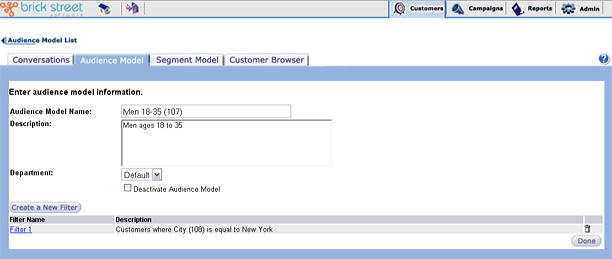
On this page, you'll enter basic information about a new audience model. Each audience model you define needs a name, a description, and at least one filter.
Make the Audience Model Name unique so that you can easily identify this model at a later time from a long list of audience models. The audience model Description should help anyone who wants to use this audience model understand what the model is designed to do.
Filters enable you to create criteria used to define who will be included in your campaign audience. These filters are applied to your total associated conversation subscriber list to create a subset to which this campaign should be sent. To create a new filter and associate it with the audience model, click the Create a New Filter button. The system will bring you to the Filter Type page, where you'll begin defining a filter.
To edit an existing audience model filter, click the blue underlined filter name in the Filter Name column. The system will bring you to a Filter Values page that fits the type of filter you've chosen.
For more information about how filters work, see Understanding How the System Prioritizes Customers.
Delete an existing audience model filter by selecting the associated delete (trash can) icon.