The Customer Browser Message History window enables you to review the message history of a specific customer. The information available for each message includes the Campaign Name, Message Subject, Date Sent, the message Status, and the Template used for that message. For those messages for which you selected the Archive Message option when defining message content, you’ll also see a link to the Message.
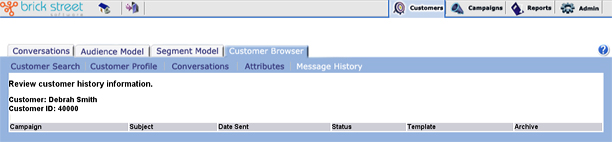
Campaign - This column displays the name of the campaign to which each message applies.
Subject - This column displays the Subject line of each message.
Date Sent - This column displays the date on which each message was sent.
Status - This column displays the Status of each of the customer’s messages.
Template - You can view the templates used for each message by clicking the links in this column. If you click Default Text, you’ll see the default text version of the template. If you click Default HTML, you’ll see the HTML version of the template.
Archive &endash; For each archived message, this column allows you to access a display of the message. When you click an archived message in this column, a separate browser window displays the actual message that was sent.
If Template displays both html and text clicking the Archive link displays the html template as the default. If Template displays both text and another template type (html or AOL) clicking the archive link displays the text template as the default.
You select the archive option on the Message Content Information page of Messages in Campaigns. For more information, see How Message Archiving Works.