Configuring SMPP
The steps to configure SMPP are:
- Configure the server.
- Specify the sender.
- Provide Advanced and TLV options if directed by SMSC.

Deployment

The Deployment Editor now has an SMS Sender and SMS Receiver, which are deployable to different machines. However, you can deploy only one SMS Sender and one SMS Receiver.
The deployment validation process will verify if both the components have been added to deployment or not. Administrators can deploy without these components, but not with only one component.
Connect can now send SMS messages in native SMPP, instead of using an SMTP-to-SMPP Gateway. New SMS Sender and SMS Receiver components were added to the system, and the customer profile has been changed to add the customer’s cell phone number.
Connect users can decide, for each message, whether to send SMS or email.
To send SMS messages, users need to identify the SMSCs to route the message through, and different messages can be routed through different SMSCs, if needed. Administrators define the SMSCs users can route messages through, and the parameters for each SMSC.
SMPP sending
- Customer needs to be configured with a SMS number.
- Configure SMSC (SMPP Server).
- Create a campaign and select the message mode when creating a message.
- Customers with SMS number will receive SMS if the message mode is “SMS Only” or “SMS preferred over email”.
- Choose the SMPP data coding scheme when defining the language. This is used to specify the character set of the short text.
- Choose if this will be a registered delivery.
- Launch the campaign.
SMPP receiving
In addition to sending SMS messages, Connect can receive SMS messages via SMPP.
- Connect SMS Receiver receives delivery receipts, replies and customer initiated requests from the configured SMSCs.
- Delivery Receipts are analyzed and failures are reported.
- Other types of SMS messages are handled by the various reply handlers.
- If redirection is enabled, SMS messages are reconstructed as email and forwarded to the provided list of email addresses.
The types of messages Connect can receive are:
- Replies (by existing customers) to Connect-initiated SMS messages > customer replies
- Customer-initiated requests not tied to a prior Connect message > unexpected customer requests
- Delivery confirmations (sent by the SMSCs we deliver SMS messages through) > Delivery confirmations
- SMS messages from customers not existing in Connect > legitimate SMS messages from other customers
- SMS spam messages
The features in Connect handle, track, and report on all these cases appropriately.
Types of SMS messages received
Customer Replies
Connect handles the following replies from customers:
- unsubscribe
- unexpected replies: forward to email response
Connect now has three new SMS-specific reply handlers to cover unsubscriptions , unexpected replies and persistent bounces, allowing Connect to forward unsubscriptions and unexpected replies to different email addresses and archive them in two different directories.
The SMS messages are forwarded in email format.
Currently we do not have a way to associate a reply to the original message in case of SMS messages. The way Connect works we cannot just match the sender address to get the message context since the SMS response will not have the original message context (customer_id.instance_id.event_id). Until this is technically possible, all replies (not delivery confirmations) will be handled as customer initiated requests.
In case of SMS reply handlers the SMSUnsubscribeReplyHandler will have more priority than the SMSContextNotFoundHanlder. If the SMS message contains an unsubscription request in the form of “unsubscribe 1111” or “unsubscribe 1111 conv1” then the SMSUnsubscribeHandler will handle the unsubscription even if the original context of the message is not found. If the handler is set to redirect then the unsubscription SMS request will be converted to an email and forwarded to the specified address.
If the message is not an unsubscription request then it will be handled by the SMSContextNotFoundHandler.
The SMS Unsubscribed count in reports will always be 0 (zero) because replies cannot be linked to original messages. Sender and receiver numbers are not enough, and more context information must be gathered from the replies to populate the reports tables.
Unexpected Customer Requests
Customer requests other than predefined customer replies (see above note) should be converted into an email and routed to an email address (typically handled by Response). The outgoing email should have the following information:�
System Parameters
There are new SMS Sending and SMS Receiving sections added to the System Parameters page, which provide access to the system parameters specific to SMPP.
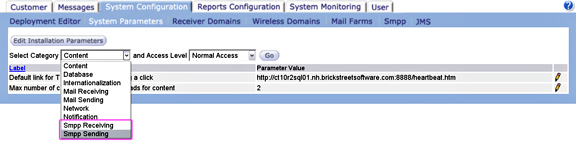
The new system parameters added to Connect to support this feature are:
- SmppMaxNumberOfRetries (CATEGORY_NOTIFICATION / RARELY_MODIFIED) – specify the number of times the SMPP Sender will try to send the SMS message in case of a send failure.
- NoContextSmppFilter (CATEGORY_SMPP_RECEIVER / RARELY_MODIFIED ) – filter applied by the NoContextFoundHandler when a SMS message is received by the MailProcessor.
- UnprocessedSmppArchiveDir (CATEGORY_SMPP_RECEIVER / RARELY_MODIFIED) – directory to store the unprocessed SMS messages received by the SMPP Receiver. These are SMS messages that could not be parsed or an exception was caught when parsing the message.
- SmppResponseTimeOutSeconds (CATEGORY_SMPP_SENDER/ RARELY_MODIFIED) – specify how long a thread will wait for a response from the SMPP server (SMSC). If the time out is reached then the sender component will try to send the message again. The number of retries is determined by SmppMaxNumberOfRetries system parameter.
- SmppMaxUnackedRequestQueue (CATEGORY_SMPP_SENDER/ RARELY_MODIFIED) – This will specify the number of SMS messages that be sent simultaneously without waiting for responses.
- ProfilingSmppAggEnabled (CATEGORY_DATABASE/NEVER_MODIFIED) – Specifies whether Profiler should calculate the aggregate for each SMPP and update the smpp_day_agg table.
- MaxSMSUnicodeLength (CATEGORY_CONTENT/RARELY_MODIFIED) –
When UCS2 (Unicode) data coding is chosen for SMPP then the maximum characters allowed by the SMSCs is 70 usually. This system parameter can be used to change the maximum characters that the content can have when USC2 is chosen as the data coding scheme.
SMSCs tab
The SMCSs tab, which was added to the System Configuration page, contains a list of available SMSC Gateways (SMPP Servers) through which you can route SMS messages.
Actions
In the new area, administrators will be able to:
- Select the default SMSC (selected by default in the message configuration for messages targeting customers via SMS). Note: users should not be able to select disabled SMSCs as the default SMSCs – see below.
- Add new SMSC gateways. Note: duplicate SMSC names or host names will not be allowed.
- Delete SMCS gateways. Used and default SMSCs cannot be deleted. You can delete unused, not-default SMSCs only.
- Enable/disable an SMSC gateway. Enabling an SMSC means making it available in the message configuration (so that messages can route messages through it). Disabling an SMSC means making it unavailable in the message configuration (as a result, users cannot route messages through it):
- By default, SMSC gateways are disabled (not accessible in the message configuration).
- When a gateway is disabled, users will not be able to route messages through it (the SMSC will not be visible in the message configuration).
- SMSCs are activated by clicking on the activate button (see below)
- An SMSC can be enabled only if the administrator has filled in all mandatory SMSC fields.
- Duplicate SMSCs with the same name or hostname will not be allowed.
- Create master TLVs: administrators will be able to add the master TLVs (the TLVs that can be assigned to the SMSC servers).
SMSC status codes
Following are the available SMSC status codes.
- Incomplete (red): SMCS being created. Mandatory fields not set. This is an initial state. After the mandatory fields have been set, the SMSC will be set (automatically) to inactive. Incomplete SMSC can be deleted (easily – no checks).
- Inactive (yellow): mandatory fields set, but SMSC not available to users. Inactive SMSCs can be activated, but cannot be set back to incomplete. Inactive SMSCs can be deleted as long as they have not been assigned to any message.
- Active (green): SMSC available to users in the message/content setup (customers can route messages through the SMSC). Active SMSCs can be inactivated by administrators so that users do not route messages through them. Active SMSCs can be deleted as long as they have not been assigned to any messages.
Following are the possible changes that can be made to an SMSC code:
Changes to an active SMSC: you can change parameters and add short codes of active SMSCs (including the defaults SMSC). When an SMSC is saved, the new values will take place in the SMS Sender/SMS Receiver after approximately a minute (there is no system parameter to control how long after the cache is updated by the components, the value is hard coded as 60 seconds). Please note that you cannot change the name, host name, port, login name and password of an active SMSC.
Changing the default SMSC: when changing the default SMSC, the Conversation Manager (CM) will use the new default SMSC (messages in prep or exec phase at the time will remain assigned to the former default SMSC, the change only applies to new messages or messages prepared, but not launched).
Disabling SMSC: when an SMSC is disabled in Connect—keeping in mind that all launched interactions need to be paused or expired to do so—the SMS Senders disconnect from the remote SMSC and stop sending messages through it. The SMS sending resumes after the messages resume and the SMSC is enabled.
An active SMSC can be deactivated only if it is not assigned to a message, or the message has been paused or expired. On deactivation the SMS components terminates all connections to the SMSC and no more messages are sent. Sending resumes again after the SMSC is activated. Please note that a paused message cannot be resumed if the SMSC assigned to the message has been deactivated. You need to first activate the SMSC and then resume the message.
SMSC parameters
The parameters for each SMSC are grouped in three areas:
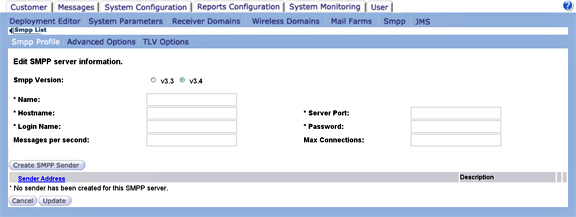
SMSC Profile parameters:
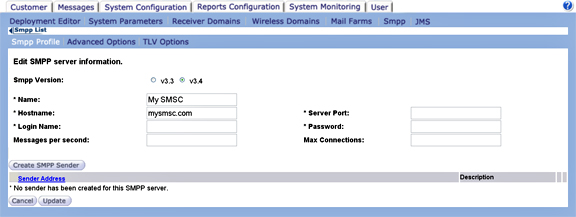
- Name: this is the name displayed in the message configuration - for enabled SMSCs - along with the shortcode.
- Host name: the remote host name accepting SMPP connections.
- Login name/Password/Server port: connection details.
- Max Connections: the maximum number of connections the SMSC will accept from each SMS Sender.
- Number of Messages Per Second: Specifies the number of messages allowed by the SMSC on a per second basis from each connection. Leave this field blank if there is no limit on the number of messages sent by Connect.
- Short codes: Each SMSC can have more than one short code. The short code appears in the content setup next to the SMSC name. Users will be able to use a combination of SMSC+Shortcode. See the following screen shot for an example. You cannot delete short codes assigned to a message.
Defining senders
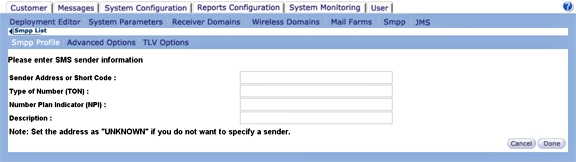

- Sender Address or Short Code: Provide the sender’s number. In some countries the sender is not mandatory or the SMSC provider assigns a random sender id, in those cases the sender address should be set to the string “UNKNOWN” and the TON/NPI should be left empty. When SMPP Sender sees the sender address as “UNKNOWN” it translates it to an empty string and sets the TON/NPI accordingly.
- Type Of Number (TON): The TON of the sender’s address is sometimes provided by the SMSC, leave it blank if you want SMS Sender to automatically calculate it.*
- Number Plan Indicator (NPI): The NPI of the sender’s address is sometimes provided by the SMSC, leave it blank if you want SMS Sender to use automatically calculate it.*
Rules.
The rules the Connect SMS Sender uses to set the sender’s TON and NPI if no values are provided:
- If the address is in international format (starts with +) then both TON and NPI are set to 1.
- If it is not in international format and the address is alphanumeric, then TON is set to 5 and NPI is set to 0.
- If these two rules do not apply, then SMS Sender will check to see if the address is a short code (containing all digits and the length is less than or equal to 5 (five )digits), if a match is found, then the TON is set to 3 (three) and the NPI is set to 0.
- If it cannot find any match, then the TON will be set to 0 and the NPI to 1.
Advanced Options (Provided by SMSC)
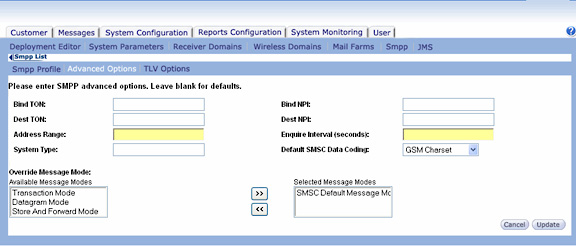
The SMSC has the following advanced options:
- Bind TON: Specifies the Type Of Number when binding
- Bind NPI: Specifies the Number Plan Indicator when binding.
- Dest TON & Dest NPI: If the fields are left blank then Connect SMS Sender will automatically determine the values by looking at the destination address. The following rules will be applied if the fields are left empty.
- The TON will be set to 1 if the address is in international format (starts with a +); else it will be set to 0.
- The NPI will be always set to 1.
- Inquire interval (seconds): This specifies the interval at which the enquire_link request will be sent to the SMSC. By default the value is set to 60 seconds.
- Message modes: message modes available for this SMSC (the ones available in “Selected Message Modes:”
Transaction Message Mode is designed for applications that involve real-time messaging where an ESME requires a synchronous end-to-end delivery outcome, without the need for long term SMSC storage.
In Datagram Message Mode, typical SMSC functions such as scheduled delivery, registered delivery etc. do not apply. Datagram Message Mode is designed for high throughput applications that may not require the highly secure delivery functionality offered by the Store and Forward message mode. It is ideally suited for applications where the data content is transient in nature, for example, vehicle tracking applications.
Store and Forward Mode stores the message in an SMSC storage area (for example, a message database) before forwarding the message for delivery to the recipient SME. With this model, the message remains securely stored until all delivery attempts have been made by the SMSC. This mode of messaging is commonly referred to as "store and forward". SMPP supports the "store and forward" delivery mechanism via the submit_sm operation, which enables the ESME to send a message to the SMSC where it is stored until it is successfully delivered, or until the message validity period expires.
SMSC Default Message Mode is the default message configuration for messages targeting customers via SMS.
Users will be able to select one of the message modes available in the “Selected Message Modes” list.
- Address range: Mask for the range of short codes accepted by the SMSC.**
- System type: The System type will be provided by the SMSC provider.
- Default SMSC Charset: There is an option to set the default charset used by the SMSC being configured. The default value of this field is the GSM charset. You may need to ask your SMSC provider about the default character set and set this field accordingly. This is a drop down list containing all the available character sets.
**Some SMSC’s look at the address range to find out which ESME should receive the message. The address range is used when the connecting to the SMSC as a receiver. Address �range can use regular expressions.
For example, when an SMSC provider assigns short codes 1234 and 1256 to an ESME, you can specify the address range as ^12 when binding as a receiver, and by doing this, it tells the �SMSC where to forward the messages addressed to short codes starting with 12.
The Address Range is something you will need to configure after talking to the SMSC provider.
By default, advanced options will be empty. If the SMSC expects a value for one of the options, administrators should set the right value in Connect. Once they make changes to the connection properties, the SMPP Sender will let the current connections complete their actions and then drop the connections to make room for new connections that will use the new properties.
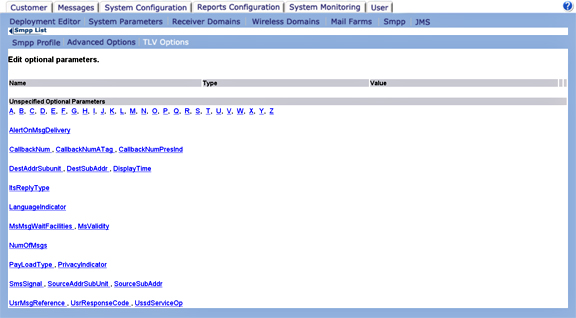
TLV options (optional SMSC-specific parameters)
Assigning TLVs: administrators will be able to choose the TLV parameters that apply to each server. To assign a TLV to an SMSC, administrators will need to click on the TLV name and assign the corresponding value.
List of global TLVs: The list of global TLVs administrators can choose from will be accessible from the button called “Edit TLVs”. The list will be shared across SMCS.
Unassigning a TLV from an SMSC: administrators will be able to unassign a TLV from on SMSC. The TLV will not be used the next time a message is submitted to the SMSC.
Deleting TLVs: administrators will be able to delete from master TLV list provided they are not tied with any SMSC server.
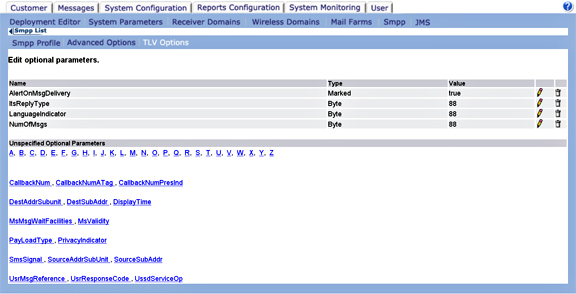
TLVs do not have default values. When assigning a TLV to an SMSC, you need to assign the right value.
Each TLV has a predefined type (empty, string, short, integer, long, hex string, byte, bitmask (in hex).
Wireless domains
Sending SMS messages via SMTP-to-SMPP Gateways will continue to be available with no changes compared to the behavior of earlier releases of Connect.
Reports configuration
This section of the UI identifies the domains users can report on in the Campaign Reports by Domains. All SMSCs will be available in the Domain/SMSC reports, and therefore, adding the SMSCs to this section is not required. With this, this section should not be affected by this feature. Please refer to the Campaign Reports section of this document for details on how the SMSC activity will be reported upon.
You can generate reports based on SMPP.