Configuring Receiver Domains
Administrators can create receiver domains that can be used in e-mail’s From field. On the user interface, navigate to Admin > System Configuration > Receiver Domains window. In the Receiver Domains window, you can create, edit or delete a receiver domain.
Creating a Receiver Domain
- Click Create a New Domain. This displays the Receiver Domain window.

- In the Receiver Domain window, enter the details of the receiver domain.
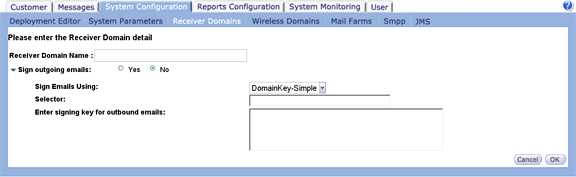
- Receiver Domain Name: Enter the receiver domain name. The receiver domain name must be unique.
- Sign outgoing emails: Click Yes to sign the outgoing e-mail messages. Otherwise, click No to avoid signing the outgoing mails.
- Sign E-Mails Using: Select any of the following options to sign the outgoing
e-mail messages.
- DomainKey-Simple
- DomainKey-Nofws
- DKIM-Simple
- Each options specifies the type of signing (DomainKey or DKIM) and the canonicalization algorithm (Simple or Nofws) to be used.
- To maximize the chances of successful verification, the data presented to the signing algorithm must be canonicalized. Canonicalization simply prepares the e-mail message for signing or verification algorithm.
- Selector: Enter an appropriate selector. Selector allows a domain to have
more than one public-key in DNS. For example, if the selector is ‘test’ and
the domain is ‘example.com’, then the receiving SMTP Server will make a DNS
query to ‘test._domainkey.example.com’.
- The current release of Connect supports only single selector for a receiver domain.
- Enter signing key for outbound e-mails: Enter the signing key and click OK.
- For security reasons, the signing key provided will be encrypted and stored in the Connect database.
Modifying an existing Receiver Domain
This section provides information about modifying an existing receiver domain. On the user interface, navigate to Admin > System Configuration > Receiver Domain.
- Click the pencil icon adjacent to the receiver domain that you intend to modify.
- Modify the details, as appropriate and click OK. Note: You cannot modify the name of the receiver domains assigned to conversations with launched messages.
Deleting a Receiver Domain
This section provides information about deleting the existing receiver domain details. On the user interface, navigate to Admin > System Configuration > Receiver Domain.
- Click the trash icon adjacent to the receiver domain that you intend to delete. This prompts to confirm the deletion.
- Click OK to delete the receiver domain.
- You cannot delete a receiver domain that is assigned to any conversation.
Upgrading from Prior Release
Customers upgrading from a prior versions of Connect will notice the following changes:
- A new table Receiver_Domain_Master will be created.
- For every unique receiver domain available in Conversation_Master table, a new receiver domain will be created in Receiver_Domain_Master table. By default, signing will be turned off for all the receiver domains created when upgrading Connect from prior releases.
- The following columns are added to the Conversation_Master table:
- RECVDOMAIN_ID: This column will be populated with the corresponding recvdomain_id.
- FLAG: This column will be populated with ‘N’ that denotes turning off
signing at the conversation level.
- Administrators can edit the existing conversations to enable signing at the conversation level. For more information about message signing at conversation level, see Message Signing at Conversation Level in Chapter 4, Configuring Message Signing.
The following column is dropped from the Conversation_Master table: RECEIVER_DOMAIN